User Auto-Provisioning
With SSO configured in the system, administrators can set up user groups for auto-provisioning to make user management easier and quicker. Once established, auto-provisioning allows for two things to occur upon an authenticated SAML user logging in to the application:
-
If the SAML user record exists, but that record does not exist in the application, a new record is created in the application.
-
If the SAML user record exists in the application, but the user’s record differs in the application, it is updated to match the SAML record.
With auto-provisioning, large numbers of existing SAML users can be created or updated within the application and given the necessary licenses to begin immediately working upon being authenticated.
Important things to note about auto-provisioning:
-
Auto-provisioning is only supported on SAML 2.0.
-
Auto-provisioning is only supported for users logging into one of the eGain consoles or the Knowledge Agent portal.
-
Auto-provisioning is only supported for department-level users.
-
Auto-provisioning allows for the use of custom attributes.
-
Roles, languages, user profiles, and guided help profiles, still need to be configured at the group level even with auto-provisioning enabled.
SAML Attributes for Auto-Provisioning
When a user logs in through SSO, eGain reads the attributes passed in the SAML assertion to create or update the user account. The following table lists the attributes that eGain expects, along with their constraints and behavior. Mandatory attributes must be present in every SAML assertion; if any mandatory attribute is missing or fails validation, the login attempt results in an error and the user account is not created or updated. For optional attributes, if an empty string is passed, the existing value is removed from the user account. Ensure that your Identity Provider (IdP) is configured to pass these attributes in the correct format before enabling auto-provisioning.
|
Attribute name |
Mandatory |
Constraints |
Description |
|---|---|---|---|
|
userName |
Yes |
Minimum 1 character; must not exceed 255 characters |
The login name of the user. Must match the user identity location configured in the eGain Admin Console. User names are case-insensitive; for example, "service" and "SERVICE" are treated as the same. |
|
firstName |
Yes |
Minimum 1 character; must not exceed 128 characters |
First name of the user. |
|
lastName |
Yes |
Minimum 1 character; must not exceed 128 characters |
Last name of the user. |
|
screenName . |
Yes |
Minimum 1 character; must not exceed 100 characters |
Screen name displayed for the user in the application. |
|
department |
Yes |
Minimum 1 character; must not exceed 100 characters |
Must be an existing department in the application. Used to look up the user in the specified department. Department names are case-insensitive. Even if provided, this value is not updated as part of auto-provisioning. |
|
email.address |
No |
Maximum allowed length: 255 character |
Primary email address of the user. If an empty string is provided, the email address is removed. |
|
middleName |
No |
Must not exceed 128 characters |
Middle name of the user. If an empty string is provided, the middle name is removed. |
|
userGroups |
No |
Maximum supported groups: 75; |
All groups must exist in the user's department. Group names are case-insensitive. Note: The user group name in eGain must exactly match the corresponding group name in the Identity Provider (IdP) or Active Directory (AD), including spaces, underscores, and all other characters. A naming mismatch—for example, "eGain_ContentApproverNACompliance" in eGain versus "eGain Content Approver NA Compliance" in AD—prevents the system from mapping the group correctly during login, and users are not added to the group. |
|
custom.<name> |
No |
As per custom attribute definition |
Any custom user attribute defined by the organization. |
|
peripheralName |
No |
Maximum allowed length: 255 characters; Must be a valid peripheralName for the UCCE configuration (done in the Administration console) |
Name of the peripheral to which this user belongs. |
Verify your IdP is configured to pass all mandatory attributes in the correct format before enabling auto-provisioning. Mismatches in attribute names, values, or user group names between the IdP and eGain will result in login errors or incorrect group assignments.
To configure auto-provisioning:
-
From the Partition and Departments dropdown menu, go to the partition space.
-
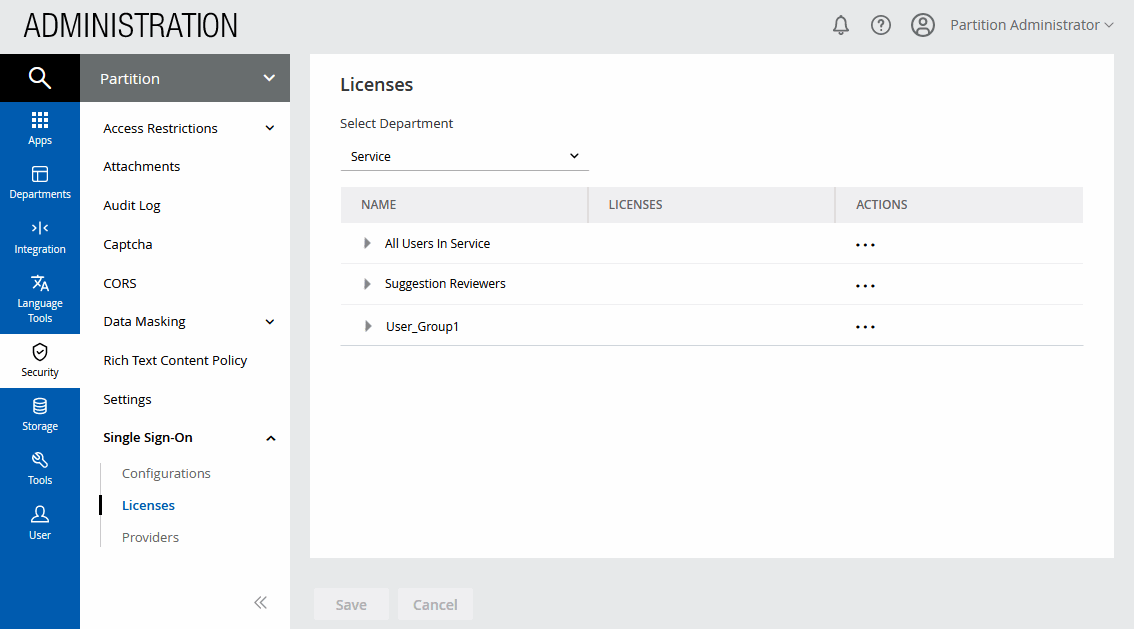
From the Navigation menu, browse to Security > Single Sign-On > Licenses.
-
On the List page toolbar, select a department from the dropdown.
-
Select user groups from the various departments in the partition.
-
From the list of Available licenses, select the desired licenses for that group. This maps user groups to licenses and allows the application to automatically assign licenses to users based on the groups in which they reside. Users of the groups selected here acquire the necessary licenses immediately upon being created or updated in the system when they are authenticated via SAML.
-
Click the Save button.
-
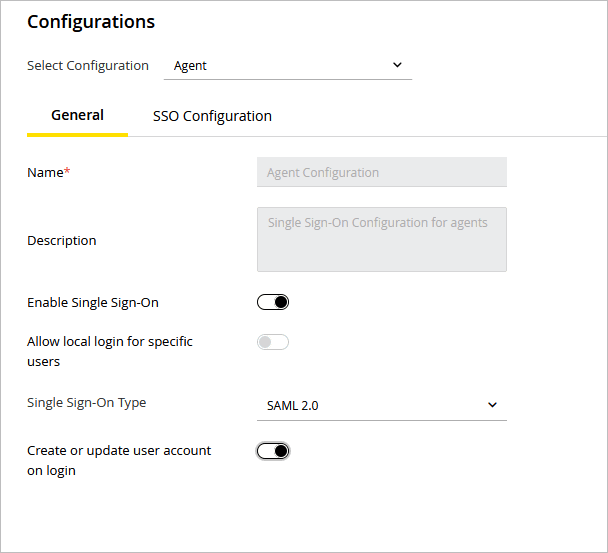
From the Navigation menu, browse to Security > Single Sign-On > Configurations.
-
On the Properties page, select Agent from the dropdown.
-
On the General tab for your SAML 2.0 configuration, in the Create/Update user account on login field, click the Toggle button to enable the filed. This field is disabled if your single sign-on configuration type is anything other than SAML 2.0. For more information about configuring agent single sign-on, see Configuring Single Sign-On for SAML 2.0 Systems.
Ensure that user group names configured in eGain match the corresponding group names in the IdP or Active Directory exactly, including spaces, underscores, and all other characters, before enabling this field. A naming mismatch prevents the system from mapping groups correctly during user login. For details on required SAML attributes and naming constraints, see SAML Attributes for Auto-Provisioning above.
-
Click the Save button.