Measure and Manage
AI Agent Analytics
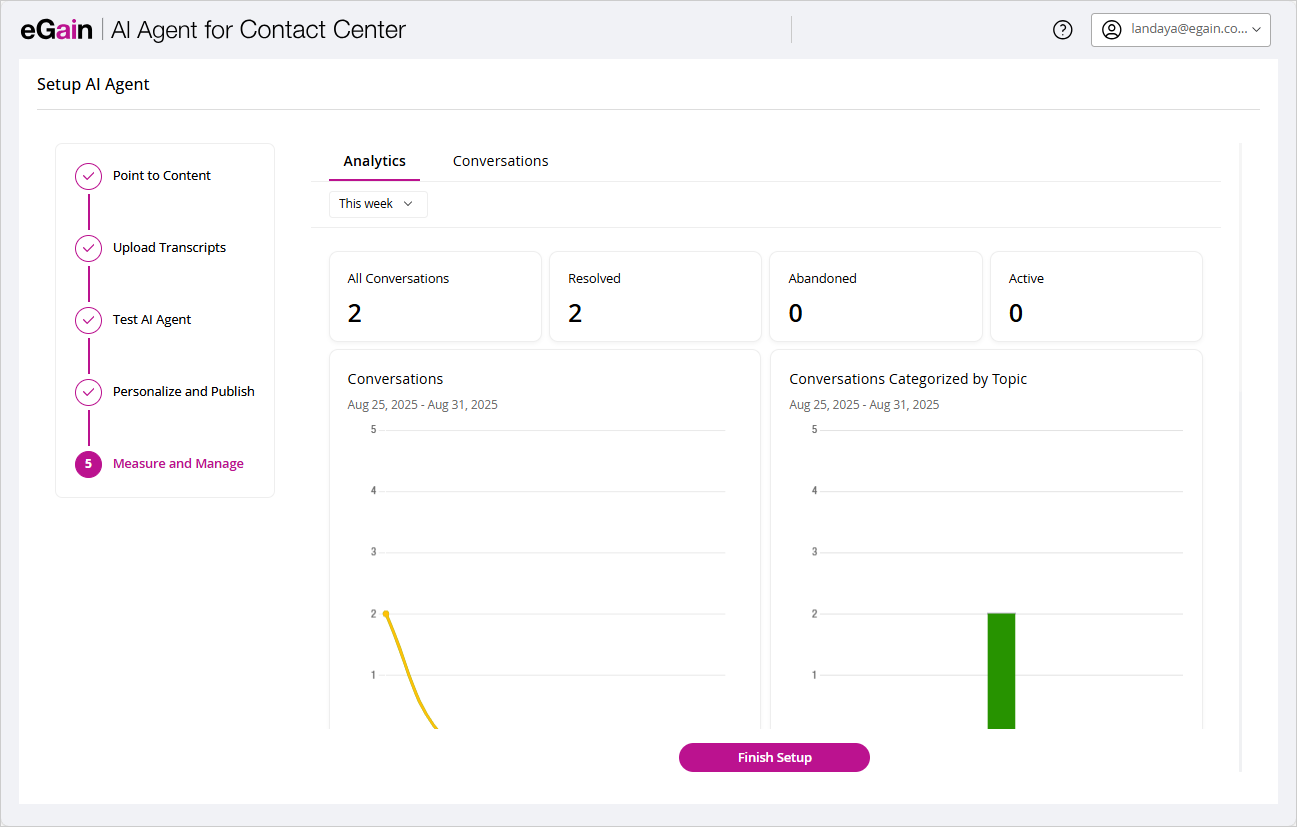
AI Agent Analytics provides a comprehensive overview of the AI Agent’s performance, helping users assess its effectiveness in handling customer interactions. This dashboard provides valuable insights into how the AI Agent is performing, highlighting areas where it excels and identifying opportunities for improvement.
Analyzing key metrics offers valuable insights, allowing users to identify patterns that optimize the AI Agent’s performance and improve the overall customer experience.
The AI Agent Analytics displays the following metrics and details over the course of the previous month, the previous week, or the current week:
-
All conversations
-
Resolved conversations
-
Abandoned conversations
-
Active Conversations
AI Agent Conversations
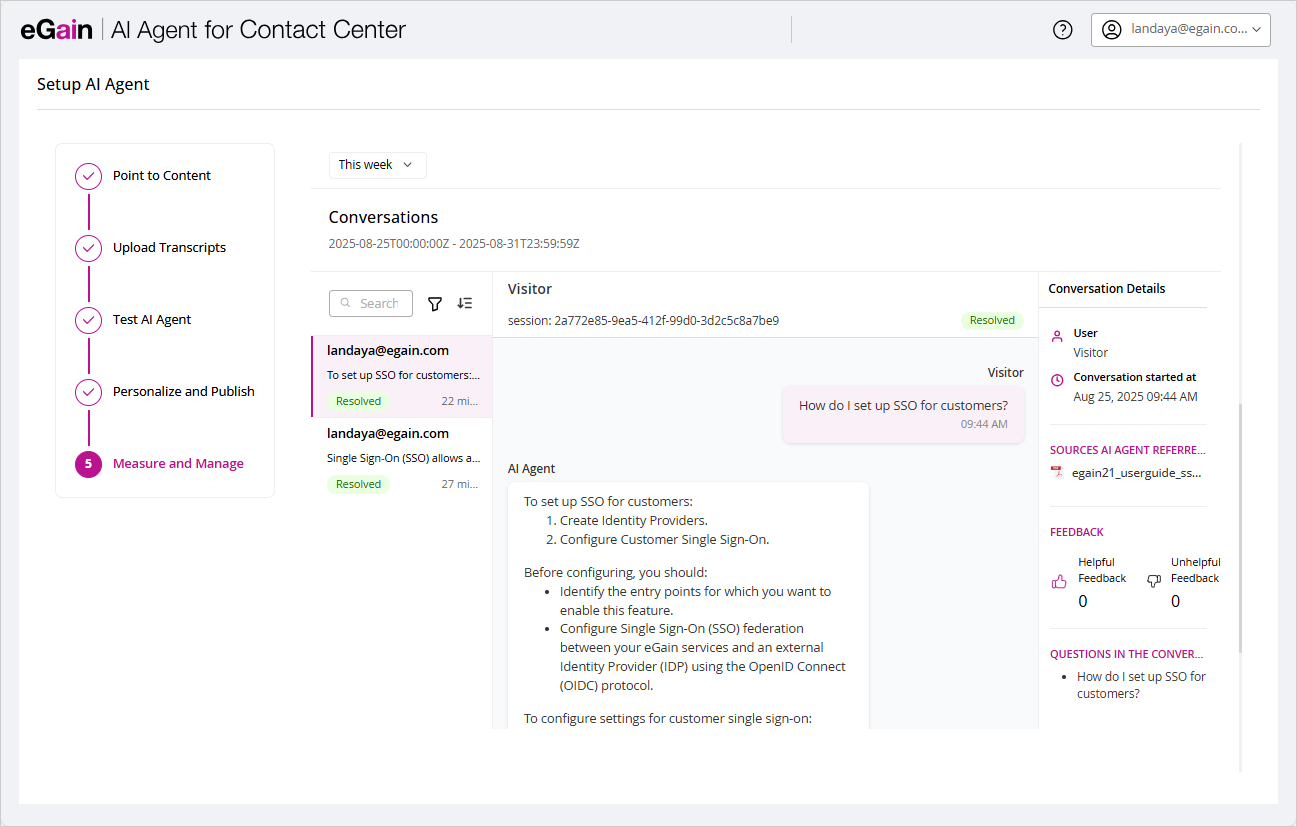
The AI Agent Conversations section is visible only after saving the AI Agent. This section enables users to review past interactions, providing valuable insights into how the AI Agent engages with customers. By analyzing conversation details, users can identify successful interactions that can be replicated, as well as areas where improvements are needed.
The Conversations section is divided into three main areas that help users review, analyze, and manage chat interactions.
1. Conversation List
The left panel displays a list of all conversations. Users can select any conversation to view its details.
- Search Messages: The search option allows users to quickly locate conversations using the user name, phrases from the conversation, or session ID.
- Filters: Users can refine the conversation list using the following filters:
-
Status: Resolved, Abandoned, Active, or All
-
Topics: Filter by topics the AI Agent is trained on
-
Feedback: All, Positive, or Negative
-
Portal: Includes search and pagination, available when integrated with eGain Knowledge Base
-
Certified: All, Certified, or No Certified
-
2. Conversation Transcript
The middle panel displays the selected conversation transcript along with the session ID and the state of the conversation (Active, Resolved, Abandoned, or Escalated).
-
When a workflow generates an AI Agent message, the message shows a workflow name marker above the message text. Messages that a workflow did not generate, and all visitor messages, show no marker.
-
Users can click the workflow name to view the workflow nodes in preview mode.
-
Users can export individual transcripts by clicking Export This Transcript or use Export Transcripts to download multiple conversations as a zip file.
-
The metadata.csv file includes the following session-level details: session ID, external ID, portal name, portal ID, username, email ID, personalization ID, conversation start time, timezone, location, source ID, source title, source URL, certified answer ID, certified answer title, certified answer URL, feedback (helpful and unhelpful counts), questions in the conversation, and conversation status.
-
The messages.csv file includes the following message-level details: session ID, message sent time, timezone, feedback, sender, message content, source ID, source title, source URL, certified answer ID, certified answer title, and certified answer URL. For bulk exports, the system respects any filters applied at the time of export.
-
3. Conversation Details
The right panel provides detailed information about the selected conversation, enabling deeper analysis and review.
-
User: Displays the type of participant (for example, visitor).
-
Conversation started at: Shows the date and time when the conversation began.
-
Location: Indicates the geographic location of the user.
-
Workflows Used: Lists each Pre-chat, Escalation, or Process workflow that ran during the conversation, in the order it first triggered. Each row shows the workflow name, its type, and how many times it ran. A workflow that runs more than once still appears as a single row, with an incremented run count. This block appears only when a workflow ran during the conversation.
-
Sources AI Agent Referred To: Lists the knowledge sources or content used by the AI Agent while responding during the conversation.
-
Feedback: Displays user feedback collected during the session, including counts of helpful and unhelpful responses.
-
Average AI Agent Response Time: Shows the average time taken by the AI Agent to respond during the conversation, helping assess response performance.
-
Questions in the Conversation: Lists the questions asked by the user throughout the interaction, providing insight into user intent and behavior.