Configuring Custom APIs
Custom Actions connect the AI Agent to external REST or SOAP APIs, enabling it to retrieve data or trigger processes from third-party systems during a conversation. When a customer query matches a configured action, the AI Agent calls the associated API endpoint and uses the response to assist the customer.
Built-In Knowledge Search Action
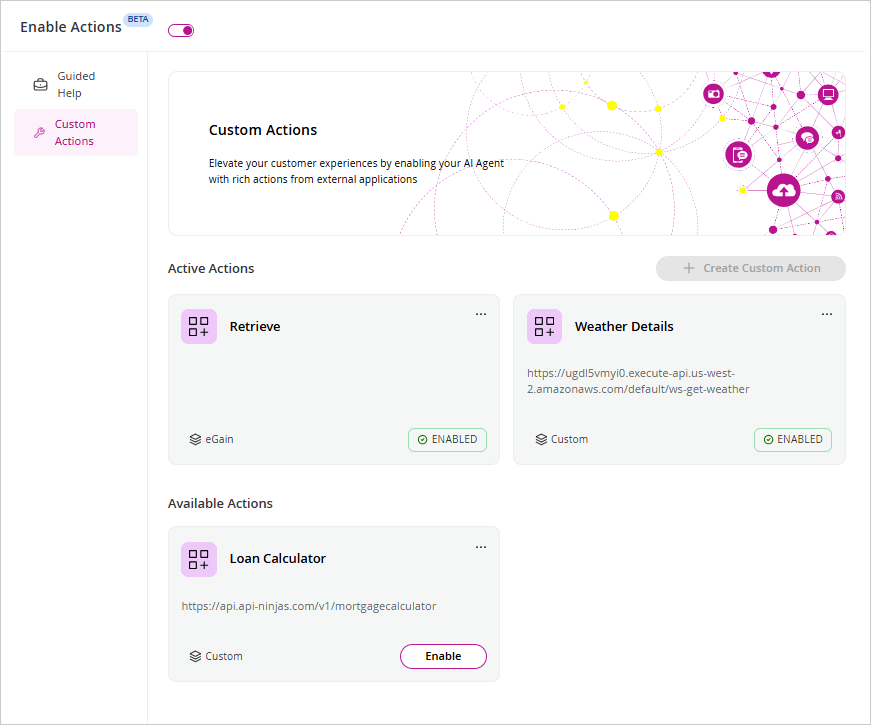
Every AI Agent includes a built-in Knowledge Search action, which appears as a card under Enabled Custom APIs on the Custom APIs tab. This action searches the agent's configured knowledge sources for documents relevant to the customer's query and is enabled by default.
-
To edit the action's description, select the Edit
 icon on the card. This opens the Edit Custom API panel, where you can update the Description fields and select Save.
 -
To turn Knowledge Search off, use the toggle directly on the card. Unlike other Custom APIs, the Knowledge Search action cannot be deleted. It can only be enabled or disabled.
Disabling Knowledge Search turns the AI Agent into an actions-only agent that responds solely through its configured actions (Custom APIs or Guided Help) and the conversation itself, without searching the knowledge base. Use this when the agent's job is to perform tasks, such as checking order status, resetting a password, or booking an appointment, where knowledge-base answers are not needed, or when no knowledge base is connected to the agent at all.
When Knowledge Search is disabled:
-
The AI Agent no longer searches the knowledge base, and knowledge-based answers, certified answers, and source citations no longer appear in responses.
-
The agent still greets customers, asks follow-up questions, and runs its configured actions normally, grounding its responses only in action results and the conversation history, never in general knowledge.
-
If a customer asks a content question the agent cannot address through its configured actions, the agent routes to the existing off-topic path and returns the topic-identification-failure message already configured for the agent. This is the same message shown when a question falls outside the agent's topics.
-
A knowledge base is no longer required to configure or run the agent. This is the supported way to build a pure-action agent.
Knowledge Search is enabled by default for every agent, so existing agents keep their current behavior unless you deliberately turn it off.
REST and SOAP APIs
A custom action can call a REST API or a SOAP API. Use a SOAP API to connect the AI Agent directly to legacy or enterprise SOAP services, without building an intermediary REST service. SOAP actions are configured manually. WSDL import and operation discovery are not supported, so you enter the endpoint, SOAP version, headers, and request XML yourself.
SOAP actions follow the same timeout, retry, payload limit, and error behavior as REST actions. If the SOAP service returns a SOAP Fault or malformed XML, or if authentication or the connection fails, the action fails and no output values are returned to the AI Agent. Credentials and authorization headers are masked in the UI, logs, and error messages.
Prerequisites
-
The AI Agent must be saved before enabling actions.
-
The Enable Actions toggle must be turned on.
-
API credentials must be prepared before configuring authentication.
-
For SOAP APIs, you need the SOAP version the service supports and a sample request envelope for the operation you want to call.
Creating a Custom Action
To create a custom action:
- From the My AI Agents page, select an AI Agent you want to edit and navigate to the Enable Actions section.
- Turn on the Enable Actions toggle if it is not already on.
- Select the Custom APIs tab.
- Select + Add Custom Actions. The Create Custom API panel opens.
- Complete the fields as described below:
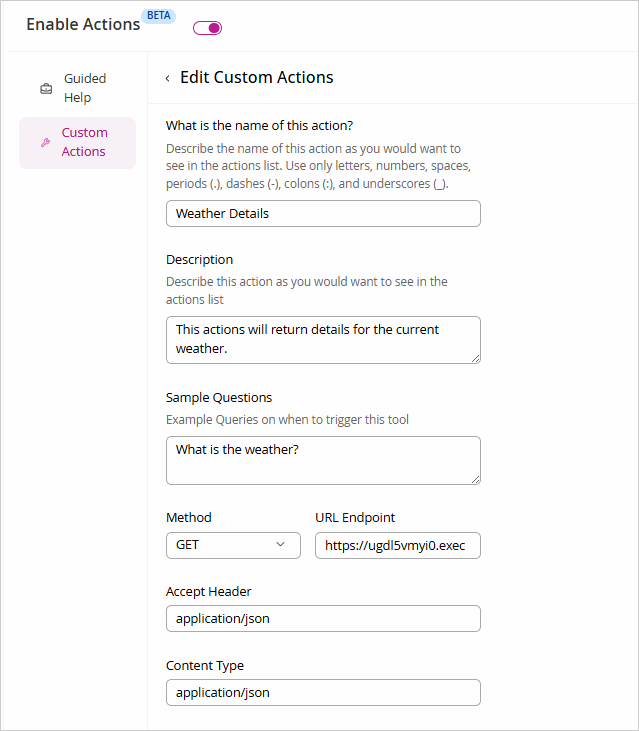
- Action Name: A unique name for this action as it appears in the actions list. Use only letters, numbers, spaces, periods (.), dashes (-), colons (:), and underscores (_).
- Description: A short description of this action as it appears in the actions list. Helps administrators identify the action's purpose.
- Sample Questions: Example customer queries that should trigger this action. The AI Agent uses these to determine when to invoke the action.
- Protocol: The type of API to call. Select one of the following:
- REST: Calls a REST API. This is the default. The Method field appears.
- SOAP: Calls a SOAP API. The SOAP Version field appears in place of Method, and the body accepts request XML.
- Method (REST only): The HTTP method used to call the API. Select one of the following from the dropdown:
- GET: Retrieves data from the API endpoint. No request body is sent.
- POST: Sends data to create a resource. A Body section is available to define the JSON payload and its variables.
- PUT: Sends data to update a resource. A Body section is available, identical in behavior to POST.
- SOAP Version (SOAP only): The SOAP version the service supports. Select SOAP 1.1 (default) or SOAP 1.2. The platform builds the request and adds the HTTP headers that the selected version requires.
- URL Endpoint: The full URL of the external API endpoint (for example, https://api.example.com/action). To add a dynamic path parameter, wrap the name in {{}}. For SOAP, enter the URL of the SOAP service.
- Path Parameters: Lists the dynamic path parameters defined in the URL endpoint.
- Accept Header (REST only): The media type the API is expected to return. Defaults to application/json.
- Content Type (REST only): The media type of the request body sent to the API. Defaults to application/json.
-
Authentication: The credential used to authenticate API calls. Credentials are sourced from External Credentials, which are available across all workflows and actions. If no credential is selected, authentication defaults to none (unauthenticated). For SOAP APIs, use a Basic Auth or OAuth 2.0 credential.
-
To use an existing credential, select it from the dropdown. For more information, see Configuring External Credentials.
-
To create a new credential, select Create New Credential. A panel opens on the right with the following fields:
-
Credential Name: A descriptive name to identify the credential.
-
Authentication Type: The authentication method for the credential. Select from the following options:
-
API Key: Provide the Header Name and API Key Value.
-
Bearer Token: Provide the Token.
-
Basic Auth: Provide the Username and Password.
-
OAuth 2.0 (Client Credentials): Provide the Token URL, Client ID, Client Secret, and Scopes.
-
OAuth 2.0 (Authorization Code PKCE): Provide the Authorization URL, Token URL, Client ID, Redirect URI, and Scopes.
-
-
Base Endpoint URL (optional): The base URL of the API the credential applies to.
-
Select Test Connection to verify the credential, then select Save Credential. Saved credentials automatically appear in the credential dropdown wherever credentials are supported.
- Headers: Custom HTTP headers to include in the API request. Select + Add to add a header row. For SOAP APIs, you do not need to add the headers that the SOAP version requires. Each row contains the following fields:
- Header Key: The name of the HTTP header.
- Header Value: The value for the header.
- Query Parameters: Query parameters to append to the API request URL. Select + Add to add a parameter row. Each row contains the following fields:
- Query Param Key: The name of the query parameter.
- Query Param Description: A description of what the parameter represents.
- Type: The data type of the parameter value (for example, Number).
- Response Headers: HTTP headers from the API response to send to the AI Agent along with the response body. Use this when the API returns information the AI Agent needs in a header rather than in the body, such as a request ID, a pagination token, or a rate-limit value. Select + Add, and then enter the name of the header (for example, X-Request-Id). To remove a header, select the delete icon next to it. If no headers are added, only the response body is sent to the AI Agent.
- Body: The request body. To reference variables, put them between {{}}. Select Edit Body to make changes.
- REST: Define the JSON payload. Available for POST and PUT methods only.
- SOAP: On the Raw body tab, enter the complete SOAP envelope and body in the Request XML field. For example:
<soap:Envelope xmlns:soap="http://schemas.xmlsoap.org/soap/envelope/">

			  <soap:Body>{{value}}</soap:Body>

			</soap:Envelope>
- Variables: Lists the variables referenced in the body. The AI Agent supplies values for these variables from the conversation when it calls the action.
- Output Mappings: Maps fields from the API response to named output fields that the AI Agent uses in the conversation. Select + Add to add a mapping. For SOAP APIs, enter the path to the node in the XML response, using element names separated by a forward slash (/) (for example, Body/GetUserResponse/User/Name). For repeated elements, use [n], where n is a 0-based index. For attributes, use @ followed by the attribute name. If a mapped node is missing from the response, it is handled the same way as a missing value in a REST response.
- Select Save. The action appears under Active Actions once saved.
Managing Custom Actions
Active Actions
Lists all custom actions currently enabled for the AI Agent. Each action card shows the action name, its source (eGain for built-in actions), and its enabled status. You can Edit, Delete, or Disable the actions.
Available Actions
Lists actions that have been created but are not yet enabled. You can Edit or Delete the actions. Select the Enable toggle to make them active in the chat widget.