Configuring External Credentials
External Credentials is a centralized store in Agentic Studio where partition administrators create, manage, and reuse authentication credentials for workflow API nodes and AI Agent actions. Instead of configuring authentication details on each individual node or action, you define a credential once and select it wherever authentication is needed.
Credentials are secured through the platform's secret-management layer. Secret values such as API keys, tokens, and passwords are never displayed in the interface after you save them.
Accessing External Credentials
External Credentials is a top-level tab in Agentic Studio. Only partition administrators can view and manage credentials.
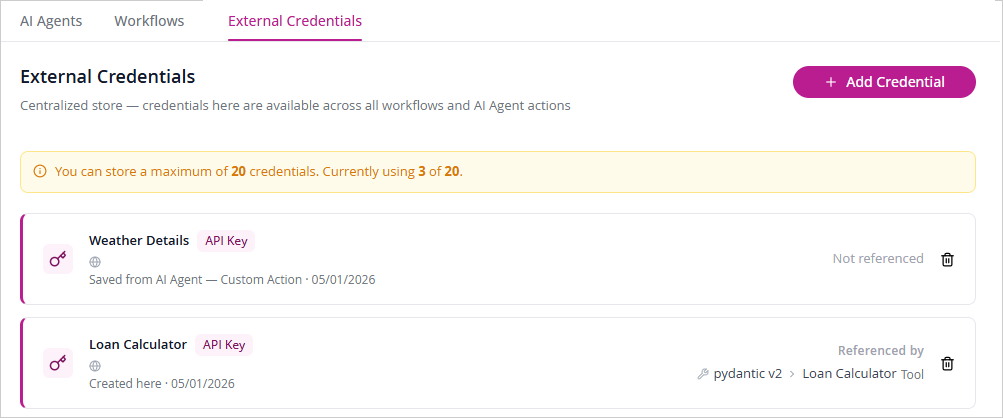
The credential list shows the following information for each stored credential:
-
Credential name and authentication type
-
Where the credential was created — either Created here (added from the External Credentials tab) or Saved from AI Agent — Custom Action (saved inline while configuring a custom action)
-
The date it was created and when it expires.
-
Whether it is currently in use — shown as View <n> reference with the dependent object, or Not referenced if nothing uses it.
-
From the Actions column, you can either delete or edit an external credential. Deletion is blocked while the credential is referenced by any workflow,or tool. The References information on the credential card shows which objects are using it. Remove those references before attempting to delete. This action cannot be undone.
Note: You can store a maximum of 20 credentials per department. The current count is shown at the top of the tab. When the limit is reached, the Add Credential button is disabled. Delete an existing credential to free up space.
Adding a Credential
You can add a credential directly from the External Credentials tab, or inline from within a workflow API node or AI Agent custom action when the credential you need does not yet exist.
To add a credential from the External Credentials tab:
- Select + Add Credential.
- In the New Credential panel, enter a Credential Name.
- Select an Authentication Type. See Authentication Types below for field details.
- Complete the required fields for the selected authentication type.
- From the date and time picker, select the Expiry Date and Time. Please note that this date/time is for internal notification purposes only and does not update the credential’s actual expiry. When there are expired credentials, a notification is displayed with the Review credentials option which directs the user to the External Credentials page.
- Select Save Credential.
The credential is saved to the store and is immediately available across workflows and AI Agent actions in the current department.
Authentication Types
Select the authentication type that matches the external service you are connecting to. The panel shows the relevant fields for the type you select.
API Key
Use for services that authenticate via a custom HTTP header containing a key value.
-
Header Name: The HTTP header name the external service expects, for example
X-API-Key. -
API Key Value: The key value sent in the header. Stored securely and never displayed after saving.
-
Base Endpoint URL (optional): The base URL of the external service. Stored as non-secret metadata.
Bearer Token
Use for services that authenticate using a bearer token in the Authorization header.
-
Token: The bearer token value. Stored securely and never displayed after saving.
-
Base Endpoint URL (optional): The base URL of the external service. Stored as non-secret metadata.
Basic Auth
Use for services that authenticate using a username and password via HTTP Basic Authentication.
-
Username: The username for the external service.
-
Password: The password for the external service. Stored securely and never displayed after saving.
-
Base Endpoint URL (optional): The base URL of the external service. Stored as non-secret metadata.
OAuth 2.0 (Client Credentials)
Use for services that use the OAuth 2.0 client credentials flow. The platform obtains and manages access tokens at runtime.
-
Token URL: The token endpoint URL for the authorization server.
-
Client ID: The client identifier issued by the authorization server.
-
Client Secret: The client secret. Stored securely and never displayed after saving.
-
Scope (optional): One or more OAuth scopes to request, space-separated.
-
Audience (optional): The intended audience for the token, if required by the service.
-
Base Endpoint URL (optional): The base URL of the external service. Stored as non-secret metadata.
Using a Credential in a Workflow or Action
When configuring an API node in a workflow, or an API call in a custom action, an Authentication section lets you select a credential from the store. The node or action stores a reference to the credential — not a copy of the secret — so credentials remain centrally managed.
- Open the workflow API node or custom action configuration.
- In the Authentication section, select the credential from the dropdown. The dropdown shows each credential's name, type, and base endpoint URL.
- If the credential you need does not exist, select Create New Credential. A panel opens so you can define the credential without leaving your current context. After saving, the dropdown refreshes and the new credential is selected automatically.
Note: If authentication is required and no credential is selected, the node or action fails validation and the workflow cannot be published.
Viewing Credential Dependencies
Each credential in the list shows whether it is currently in use. If a credential is referenced, the References label shows the dependent object — for example, the agent and tool that use it. If a credential is not used by anything, it shows Not referenced.
Review the dependency information before deleting a credential to understand what will be affected.
Security and Storage
All secret values such as, API keys, tokens, passwords, and OAuth client secrets , are stored in the platform's secret-management layer and are not stored in application configuration tables. They are never returned to the interface after you save a credential. The credential list and dropdowns display only non-secret metadata: name, authentication type, base endpoint URL, source, and creation date.
Credentials are scoped to the department in which they are created. A user cannot view, select, or reference credentials from another department.
Limits
Each department can store a maximum of 20 external credentials. This limit applies across all credential types. The current count is shown at the top of the External Credentials tab. When the limit is reached, you must delete an existing credential before adding a new one.