Configuring Guided Help Actions
Guided Help actions define the predefined help topics that appear as a dropdown in the customer-facing chat widget. Each action is linked to a Guided Help flow configured in the knowledge base. When a customer selects a topic, the AI Agent displays the corresponding flow.
Prerequisites
-
The AI Agent must be saved before enabling actions.
-
The Enable Actions toggle must be turned on.
-
At least one Guided Help flow must be configured in the knowledge base.
-
A knowledge base must be connected to the AI Agent. If none is connected, a disclaimer is shown and Guided Help actions will not function.
Adding a Guided Help Action
To add a guided help action:
- From the My AI Agents page, select an AI Agent you want to edit and navigate to the Enable Actions section.
- Turn on the Enable Actions toggle if it is not already on.
- Select the Guided Help node.
- Click + Add Guided Help. The Create Guided Help panel opens.
- Complete the fields as described below:
- Action Name: A unique name for this action as it appears in the actions list. Use only letters, numbers, spaces, periods (.), dashes (-), colons (:), and underscores (_).
- Description: A short description of this action as it appears in the actions list. Helps administrators identify the action's purpose.
- Sample Questions: Example customer queries that should trigger this action. The AI Agent uses these to determine when to invoke the action.
- Guided Help: Select the Guided Help flow from the dropdown. The dropdown lists all Guided Help flows configured in the connected knowledge base. When a customer selects this topic, the selected flow is displayed in the chat widget. This field is required.
- Show Guidance Articles: When enabled, the AI Agent surfaces relevant knowledge articles alongside the Guided Help flow.
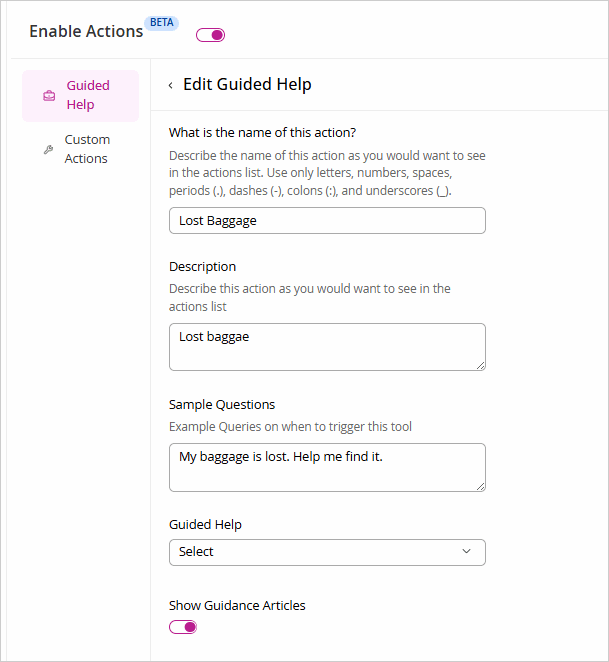
- Click Save. The action appears under Active Guided Help once saved.
Managing Guided Help Actions
Active Guided Help
Lists all Guided Help actions that are currently enabled. These topics are available to customers in the chat widget dropdown.
You can Edit, Delete, or Disable the actions by from the Options menu.
Available Guided Help
Lists actions that have been created but are not yet enabled. You can Edit or Delete the actions by from the Options menu. Click the Enable button from this section to make them active in the chat widget.