Configuring Variables
About Variables
Variables store information collected or generated during a workflow, such as a customer's name, account type, or a value returned from an API call. Once stored, a variable's value is available to all subsequent nodes in the workflow and can be referenced using {{variableName}} syntax in message text, API fields, and other inputs.
Variables are shared across all workflows in the department. They are managed in Agentic Studio > Workflows > Variables.
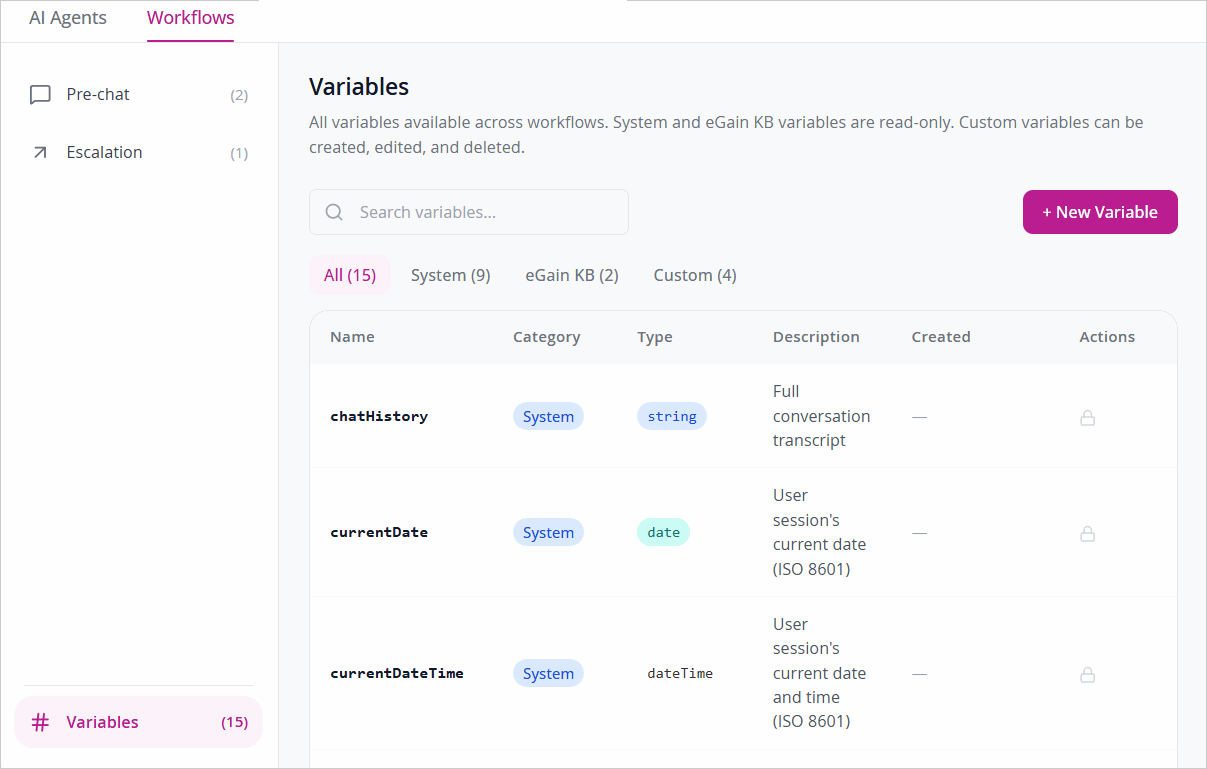
The Variables page lists all available variables with the following details:
-
Name — The variable name in camelCase.
-
Category — System, eGain KB, or Custom.
-
Type — The data type of the variable.
-
Description — A short description of what the variable stores.
-
Created — The date and time the variable was created (Custom variables only).
-
Actions — Edit or delete the variable. System and eGain KB variables display a lock icon and cannot be modified.
Use the Search variables field to find a specific variable, or use the category tabs — All, System, eGain KB, and Custom — to filter the list.
Variable Categories
There are three categories of variables:
-
System — Built-in variables automatically populated by the workflow engine on every turn of a session. System variables are read-only. You can read them in question prompts, Condition rules, Statement text, API payloads, Send Email fields, and Query Filter clauses, but you cannot write to them from a Set Variable node or use them as the target of an input node's Variable Key field.
-
eGain KB — Variables tied to the eGain Knowledge Base, such as KB article attributes and filter tags. These are read-only.
-
Custom — Variables you create to store workflow-specific data such as customer inputs or API responses. Custom variables can be created, edited, and deleted.
System Variables
The following system variables are available in every workflow:
-
workflowRunCount— The number of times the current workflow has run in the session, starting at 1. Useful for Escalation Workflows that need to take different paths on repeat runs. -
currentDate— The user session's current date (ISO 8601). -
currentTime— The user session's current time (ISO 8601). -
currentDateTime— The user session's current date and time (ISO 8601). -
userQuery— The customer's current message. This is the value forwarded to the AI Agent when a Pre-Chat Workflow hands off through a Send to AI Agent node. -
sessionId— The current session ID. Useful for logging or passing context to downstream systems. -
chatHistory— The full conversation transcript. Commonly included when a Send Email node notifies a human agent. -
timezone— The user's timezone. Useful for scheduling or display logic. -
queryOps— The accumulated knowledge base query filter conditions built up by Query Filter nodes during the session. -
tokenContext— Accesses identity information already present in the user's session, such as their email address or user ID, without requiring the admin to collect or hard-code it. Select tokenContext as the variable source and enter the Claim name of the value you want, such as email. The platform retrieves the value automatically at runtime.
Creating Custom Variables
You can create a custom variable in two ways:
From the Variables page:
-
In Agentic Studio, go to Workflows > Variables.
-
Click + New Variable.
-
In the New Custom Variable dialog, enter a Name for the variable. Variable names must be in camelCase and contain letters only, for example,
customerEmail. -
Select a Type.
-
Optionally, enter a Description to explain what the variable is used for.
-
Click Create Variable.
Inline from the Variable Picker
When configuring any field that expects a variable, such as the Variable Key on an input node, the target variable on a Set Variable node, or the response mapping on an API node, the Variable Picker includes a New Custom Variable option. Selecting it opens the same creation dialog without leaving the node you are working on. When you save the new variable, it is immediately selected in the picker. This lets you build the flow and create variables in a single step, rather than stopping to visit the Variables page first.
Variable types
Select the type that matches the data you intend to store:
-
String: Any plain text value: names, email addresses, policy types, free-text descriptions, or short IDs that are not purely numeric. String is the most flexible type and the safest choice when in doubt.
-
Integer: Whole-number values such as account numbers, counts, quantities, or ages — any value the workflow will do arithmetic on or compare using greater-than or less-than operators. Integer variables cannot hold decimal values; for currency amounts with cents, use String instead.
-
Boolean: A true or false value. Use for flags and yes/no states.
-
Date: A calendar date value. Use when the variable will be written to by a Date input node or compared in a Condition node using date operators.
-
Time: A time value. Use when the variable will be written to by a Time input node.
-
DateTime: A combined date and time value.
-
Object: A structured value made up of nested fields, such as data returned from an API call or a JSON payload. Use this when the variable needs to hold more than a single value at once, rather than a plain text, number, or date.
The type you choose must match the input node writing to it. For example, a Date input node cannot write to a String variable — the publish check will flag this and block publishing.
Editing Custom Variables
To edit a custom variable:
- In Agentic Studio, go to Workflows > Variables.
- Locate the variable and click the Edit
 icon in the Actions column.
 - Update the Name, Type, or Description as needed.
- Save your changes.
If you change the type of a variable that is already referenced in published workflows, those workflows continue to run but may behave unexpectedly if the new type is incompatible with how the variable is used. Review all affected workflows after changing a variable type.
Deleting Custom Variables
To delete a custom variable:
- In Agentic Studio, go to Workflows > Variables.
- Locate the variable and click the Delete
 icon in the Actions column.
 - A confirmation dialog appears. If the variable is currently referenced by one or more workflows, the dialog lists those workflows. Update those workflows to remove or replace the reference before proceeding.
- Confirm the deletion.
Deleting a variable is permanent — there is no undo. If a variable is deleted while still referenced in a workflow, the missing variable resolves to empty at runtime. A Statement using
{{customerName}}will display the literal text{{customerName}}to the customer. An API call using the deleted variable will send an empty value. A Condition node branching on it will evaluate as though the value is always empty, typically sending the flow down the Else path. None of this raises an obvious error; the workflow simply does the wrong thing silently. Always update all references before deleting a variable.