Configuring the Links Bar
You can add links and link categories to your portal using the Links Bar settings.
To add links and categories:
-
In the Navigation Menu, browse to Publishing >Themes.
-
On the Themes page, navigate to the Custom Themes section and click the Edit button next to the theme you want to customize.
-
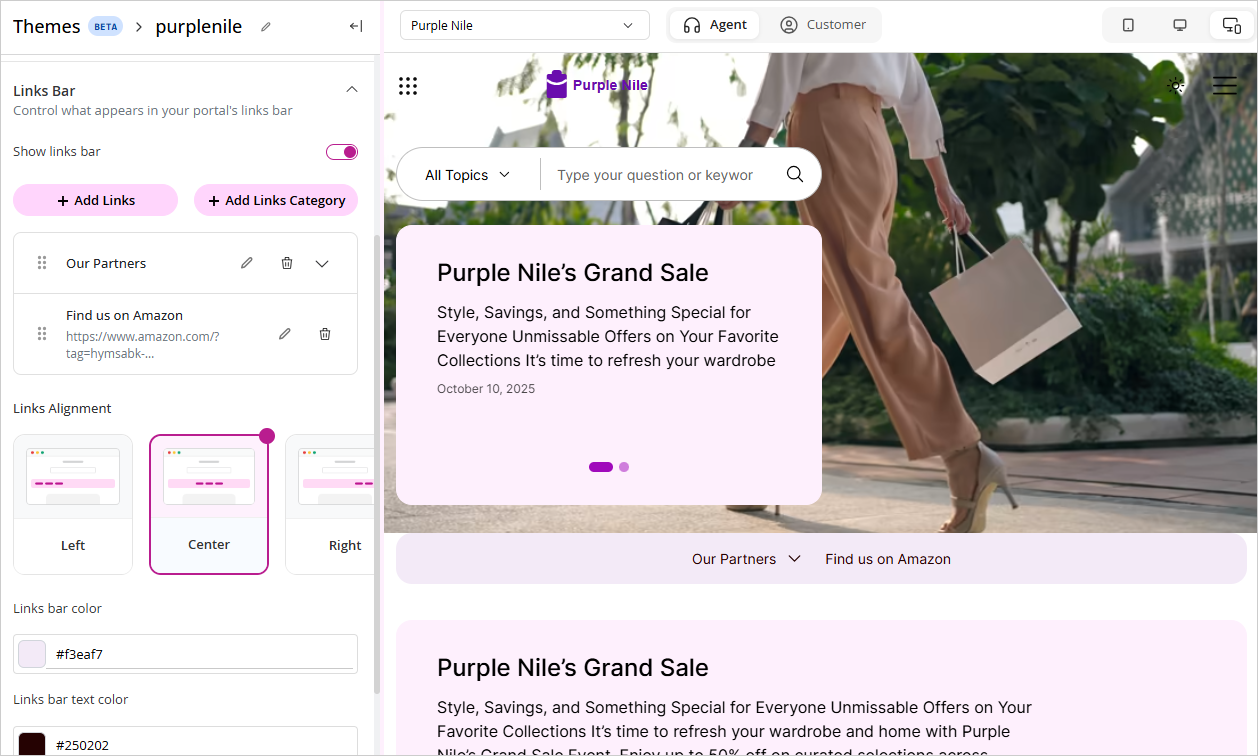
In the Themes workspace, navigate to Global > Links Bar and click the Expand button.
-
From the expanded menu, you can make the following changes:
-
Show links bar: Click the Toggle button to display the links bar in your portal. Enabling this setting, exposes the following options:
-
Show in all pages: Enable this setting to display the links bar on all pages of the portal.
-
Links: Click the Edit edit button next to Links to open the Edit Links modal.
-
Select a language from the dropdown at the top of the modal to configure links for that language. This dropdown lists the languages selected in Branding & Identity > Languages. For more information, see Configuring Languages.
-
Click the Add Link button to add a link. Provide a Label and the URL, and select whether it opens in the same tab or a new tab.
-
Click the Add Links Category button to add a category of links. Provide a category name, then click the Add Link
 button under the category to add sub-links, each with its own Label, URL, and Open in setting.
 -
Use the drag handle next to a link or category to rearrange it, or click the Delete
 button to remove one.
 -
Click Update to save your changes, or Cancel to discard them.
-
-
-
-
Link bar color: Select the color of the link bar.
-
Link text color: Select the text color for the links.
-
Click Save.