Creating AI Agents
AI Agents are deployed on websites or portals to provide instantaneous and personalized support for the customers.
Creating a New AI Agent
To create a new AI Agent:
-
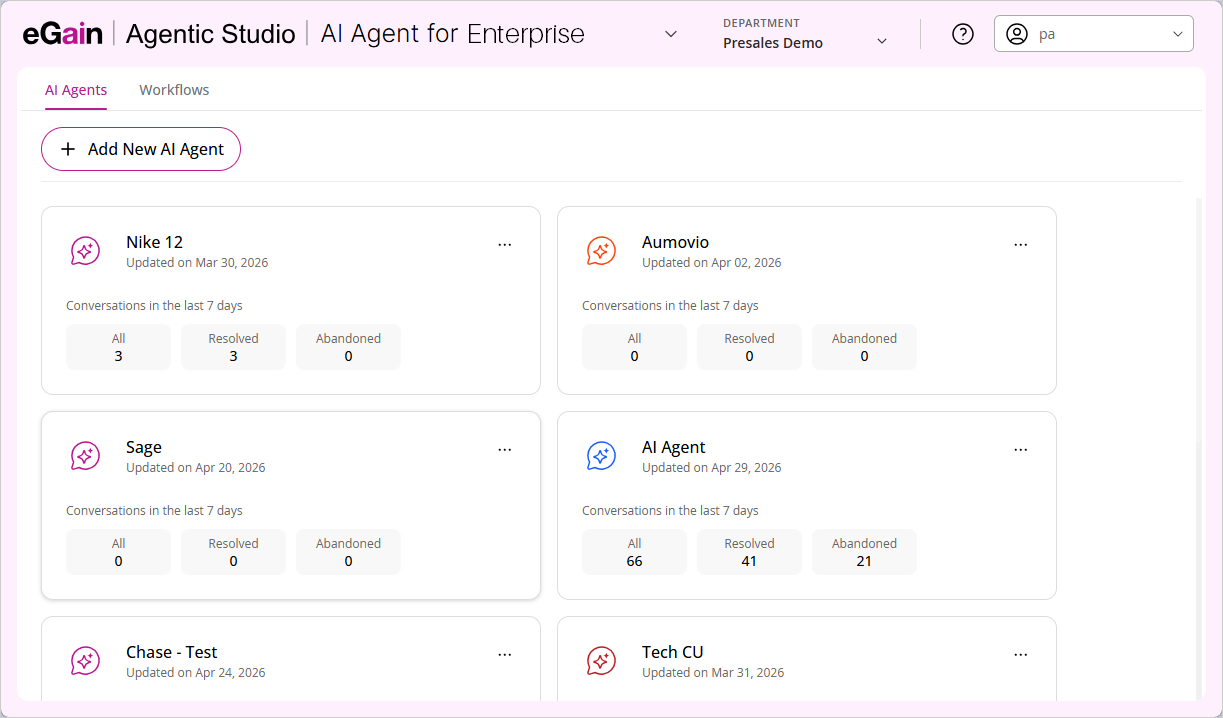
On the AI Agent list page, click the Add new AI Agent button.
-
In the Setup AI Agent window that opens, provide a name for the AI Agent.
-
From the Language of your AI Agent dropdown, select a language in which the AI Agent will interact with the user. Please note that you cannot change the language once selected. If the user has the Knowledge+AI license, all available MLKB languages are displayed in the dropdown.
-
Next, provide the following details:
-
Point to Content: Provide details for the content sources and train the AI Agent using these sources. For more details, see Configuring Data Sources and Training your AI Agent.
-
Test AI Agent: Review and test the AI Agent. For more details, see Testing AI Agent.
-
Personalize and Publish: Modify and refine different aspects of the AI Agent. For more details, see Personalizing AI Agent.
-
Measure and Manage: Review different metrics to analyze the AI Agent's performance. For more details, see Analytics and Metrics.
-
Settings: Manage data security, deployment channels, and advanced authentication settings for the AI Agent. Use the Security tab to turn data masking on or off and view the data purging and allowed websites policies, the Channels tab to embed the AI Agent on your website, the Channels (Legacy) tab to view available app integrations, and the Advanced tab to configure OAuth token scopes and the client application ID.
-
- Click the Finish Setup button.
- After you save the AI Agent, the Settings page becomes available, where you can configure data security and embed the AI Agent on your website. For more information, see Configuring AI Agent Settings.