Personalizing AI Agent
The Personalize and publish section allows users to customize and fine-tune various aspects of the AI Agent to align with business needs and branding. Users can update general settings such as the AI Agent’s name, colors, greetings, and icons to ensure a consistent user experience. Additionally, the chat interface can be modified to reflect the desired look and brand identity. To embed the AI Agent on websites and portals, use the Settings page.
A preview of the AI Agent chat widget is available while configuring these settings.
Chat Interface Settings
You can collapse or expand all sections by selecting Expand All or Collapse All.
To configure look and feel:
-
Create an AI Agent.
-
On the Personalize and Publish step, expand the Look & Feel section and make the following selections:
-
Display name of your AI Agent: Rename the AI Agent by typing a new name.
-
Language: Displays the language selected while creating the AI Agent. This field cannot be modified.
-
Widget Color Theme: Select one of the available widget theme presets: Magenta, Blue, or Green. You can also select the Custom theme, to add custom colors to the following different elements:
-
Header Background Color: Choose a different color for the chat widget header from the color picker.
-
Color for interactive elements including buttons, links, user message box, and status animation: Choose a color for the stated elements. This setting is available under the Advanced section and cannot be modified for any other OOTB themes.
-
Chat Background Color: Choose the color for the chat widget background color. This setting is available under the Advanced section and cannot be modified for any other OOTB themes.
-
-
Profile picture of your AI Agent: Select the Add
 button to upload a launcher icon.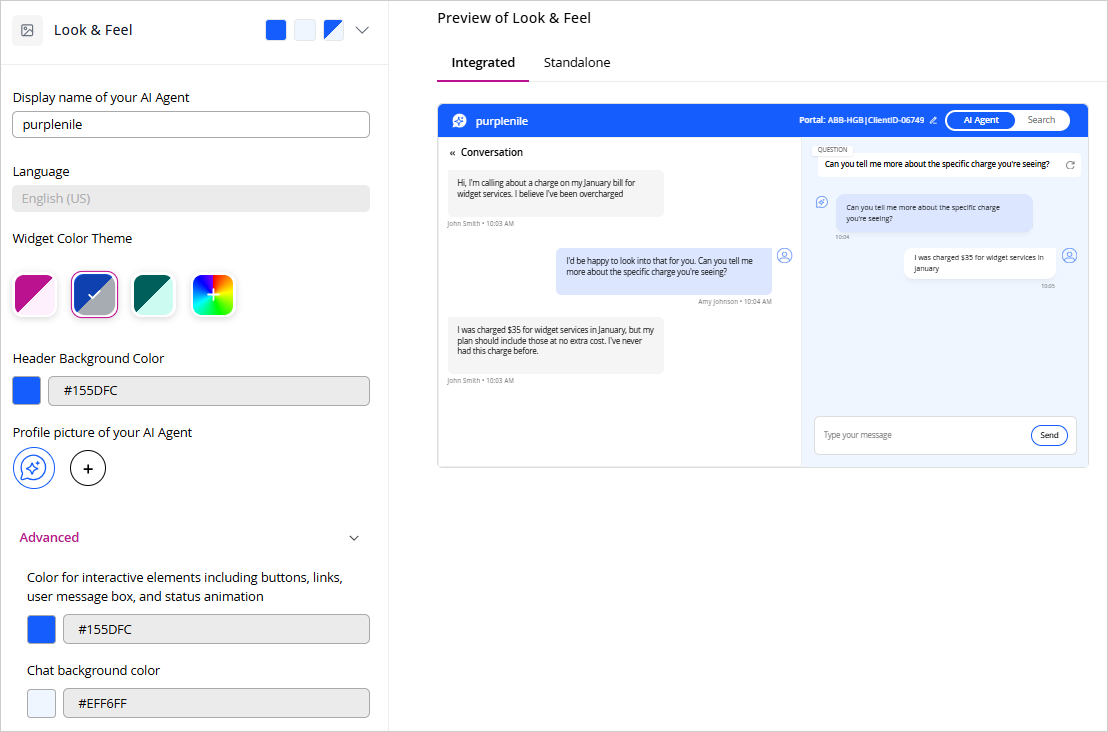
-
-
Expand the Conversation Behavior section and make the following selections:
-
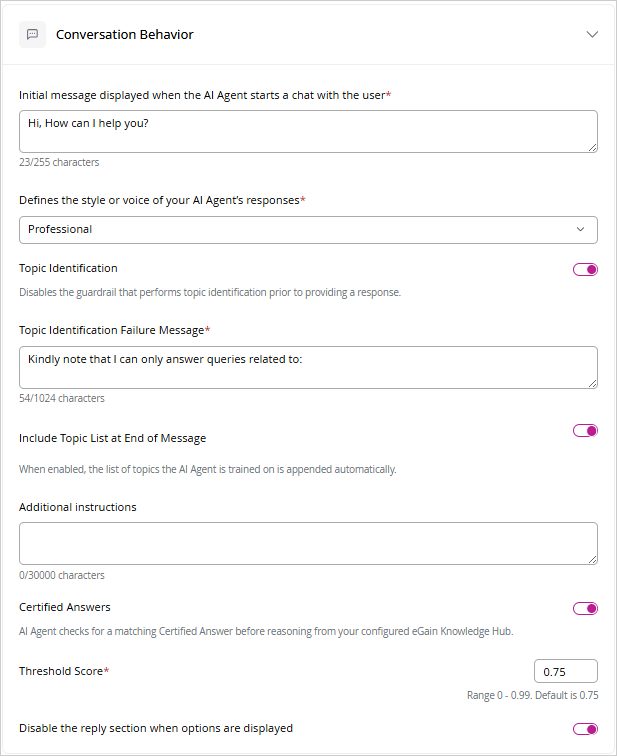
Initial message displayed when the AI Agent starts a chat with the user: Enable this setting to configure the greeting message shown when the AI agent starts a chat with a user. You can choose between Static and Dynamic greeting options.
- Static Greeting: Provide a fixed greeting message that is displayed the first time the user is greeted by the AI agent.
- Dynamic Greeting: Provide instructions that prompt the AI agent to adapt the greeting based on context, enabling a more personalized user experience.
-
Defines the style or voice of your AI Agent’s responses: From the dropdown select one of the available styles for your AI Agent: Professional, Casual, Friendly, or Custom. When you select Custom, the Tone Instructions field is displayed. In this field, you can enter custom tone and response instructions (up to 10,000 characters) to tailor the AI Agent’s tone to your business requirements.
-
Topic Identification: Turn off the toggle to disable the guardrail that performs topic identification prior to a response. When this guardrail is disabled, the AI agent will no longer restrict responses based on the topics it was trained or configured to handle, and may attempt to generate an answer even for questions outside its intended scope.
-
Topic Identification Failure Message: Provide a custom message (up to 1024 characters) displayed when a user’s query falls outside the AI Agent’s supported topics. By default, it reads: “Kindly note that I can only answer queries related to:”. You can replace this with a branded or tone-matched message.
-
Include Topic List at End of Message: Turn on the toggle to automatically append the list of topics the AI Agent is trained on to the end of the Topic Identification Failure Message.
-
Additional instructions: Enter additional instructions to improve the quality of responses by providing additional background about your business.
-
Certified Answers: Enable this setting to allow the AI agent to first check for a matching Certified Answer before generating a response using content from your configured eGain Knowledge Hub.
AI Agent can only return Certified Answers from published articles that are configured for Certified Answers. Create articles using an article type with the Use for Certified Answer setting enabled and add the trusted answer content, and related questions. In addition, the AI Agent must be trained on the knowledge portal or knowledge system that contains the Certified Answer articles. For information about creating and managing Certified Answer articles, see Authoring and Configuring Certified Answers in the Knowledge help.
-
Threshold Score: This setting is enabled only when you enable certified answers. Enable this setting to define how closely a user’s question must match the questions defined in the Knowledge Hub articles for the AI agent to consider it a valid match.
The default Threshold Score is 0.75. As the Threshold Score is increased closer to 0.99 (range: 0–0.99), the AI agent requires a higher similarity between the user’s question and the questions in the Knowledge Hub articles, resulting in more precise and narrowly matched responses.
-
Disable the reply section when options are displayed: Enable this setting to disable the reply area when the AI agent displays selectable options. The reply area remains disabled until the user makes a selection.
-
Show Heartbeat Content: Enable this setting to show real-time status labels in the widget, such as Thinking or Fetching knowledge, while the AI Agent is processing a request.
-
Sound Alert: Enable this setting to play a sound in the chat widget when the AI Agent sends a message. This setting is on by default. When it is off, the widget continues to display messages, typing indicators, and heartbeat content as usual; only the notification sound is turned off. The setting applies to all widget deployments of the AI Agent, and the Look & Feel preview reflects the selected setting. Save your changes for the setting to take effect for users.
-
-
Expand the Pre-Chat section, and enable the Use a pre-chat workflow to collect information before the conversation setting to select a pre-chat workflow from the dropdown. You can select the View
 icon to view the selected workflow.
 -
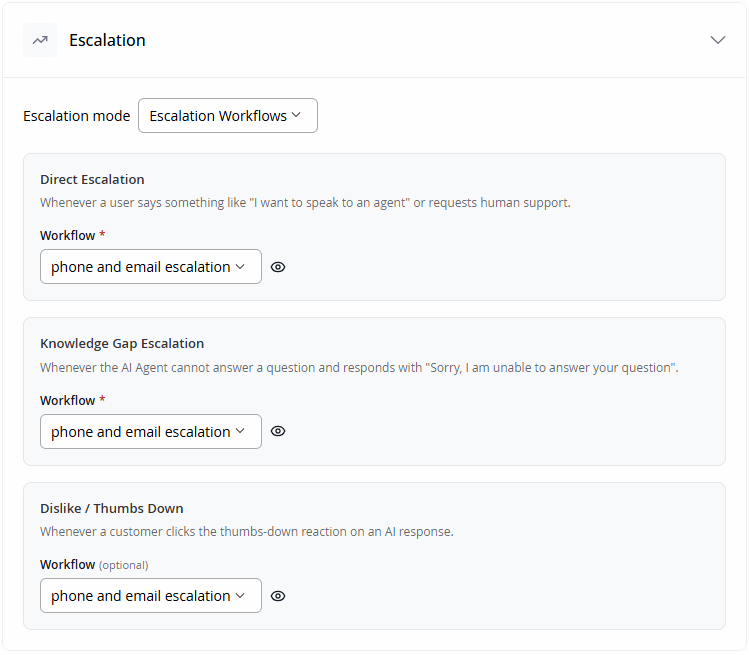
Expand the Escalation section, and select the Escalation Mode from the dropdown.
- When you select Default Behavior, provide the following details:
-
Enable If you need to escalate on call, use the below phone number and enter a callback phone number. When enabled, the AI Agent displays this number to the customer when a call escalation is needed.
-
Enable If you need to escalate through email, use the below email address and enter an email address. When enabled, the AI Agent uses this address when an email escalation is needed.
-
Enable If you need to escalate to a live chat, display this escalation message and enter the message to display. When enabled, the AI Agent shows this message to the customer when transferring to a live agent. This option requires the corresponding channel to be configured in Integrate Apps before the toggle can be enabled.
-
Enable Display message when AI Agent cannot answer and enter the message to display. When enabled, the AI Agent shows this message whenever it is unable to answer a customer's question.
-
- When you select Escalation Workflows, make the following selections:
-
Direct Escalation: Select a workflow from the Workflow dropdown. This workflow runs whenever a customer explicitly requests human support, for example, by saying "I want to speak to an agent." You can select the View
icon to view the selected workflow. -
Knowledge Gap Escalation: Select a workflow from the Workflow dropdown. This workflow runs whenever the AI Agent cannot answer a question and responds with "Sorry, I am unable to answer your question." You can select the View
icon to view the selected workflow. -
Dislike / Thumbs Down: Select a workflow from the Workflow dropdown. This workflow runs whenever a user selects the thumbs-down reaction on an AI Agent response. You can select the View
icon to view the selected workflow.
-
- When you select Default Behavior, provide the following details:
-
Expand the Demo Link section and select the link to chat with the AI Agent.
-
When you are done personalizing the AI Agent, select Save Changes.
Any changes made on this page may take up to 5 minutes to appear in your AI Agent.
The Embed section has moved. To get the Agent ID, System URL, and widget embed code, go to Settings > Channels > Website. For more information, see Configuring AI Agent Settings.