Creating, Modifying or Publishing a Model Version
Once you are ready to use the Classification Training utility, you can choose to create a new model version, update an existing one, publish a model version to production, or revert an existing model version to stage.
Creating a New Model Version
To create a new model version:
-
On the Classifiers page, click the Training
 button.
 -
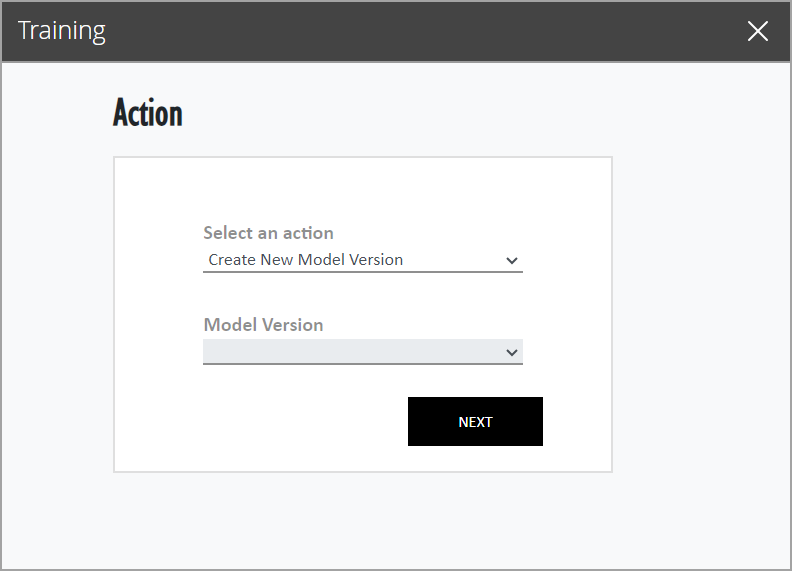
From the Select an Action field dropdown menu, select the Create New Model option.
-
Leave the Model Version dropdown menu blank and click the Next button.
-
In the Create New Model window, select the desired percentage of intents that you want to test.
-
Under the Add CSV Files option, click the Upload button. Navigate to the location of your CSV file on your local machine, and select it.
-
Click the Next button once the CSV file has been uploaded.
-
In the New Model Confirmation window, review the intents that you plan to test and make any changes if desired, then click the Next button to start testing your intents.
-
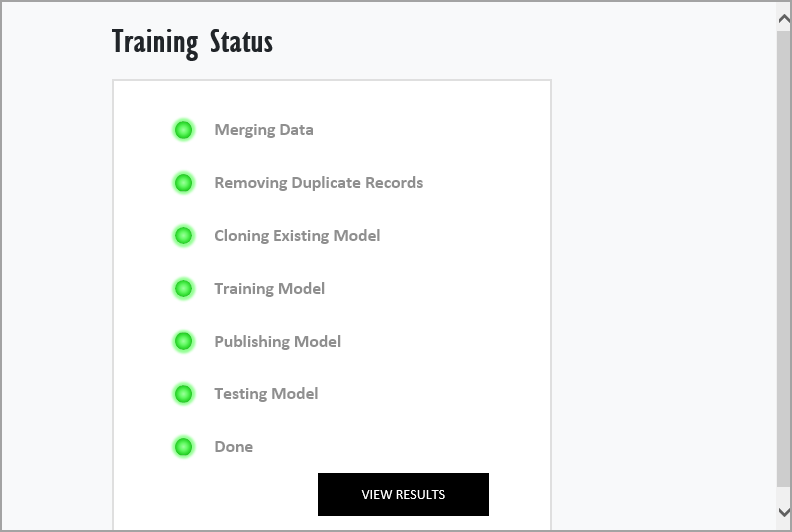
The green dots displayed light up as each stage in the test is completed.
-
Note that the testing process may take longer for larger CSV files containing more intents.
-
-
Once the test is completed, the intent engine report window opens, and you can review the test results. After reviewing the results, you can publish the new model version to production, making it active for the Virtual Assistant to use.
Updating an Existing Model Version
To update an existing model version:
-
On the Classifiers page, click the Training
button. -
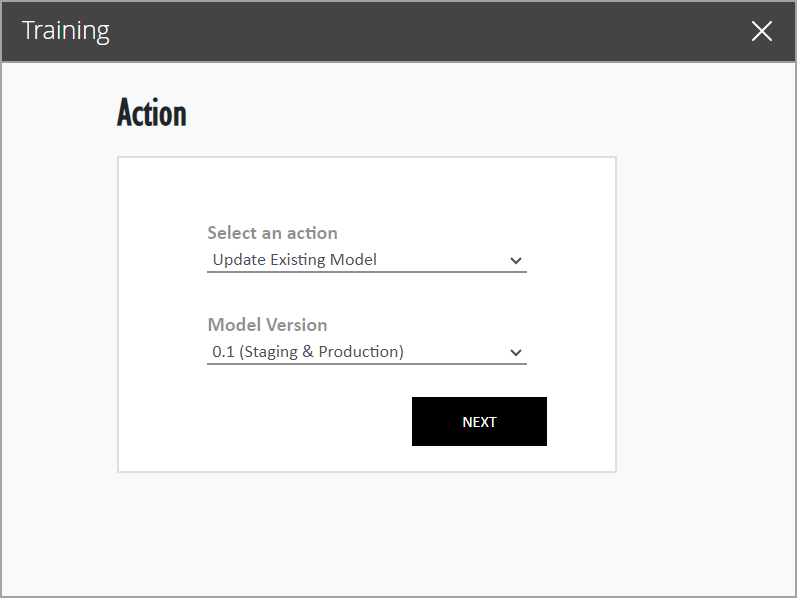
From the Select an Action field dropdown menu, select the Update Existing Model option.
-
Select the desired model version from the list and click Next.
-
Model versions can be identified by their numbers - more recently created model versions will have higher numbers. For example, a model version assigned the number 1.1 was created more recently than a model version with the number 0.2, but is older than a model version assigned the number 1.3.
-
Note that numbers of model versions that are re-tested and updated retain their original assigned number, despite having been recently updated.
-
-
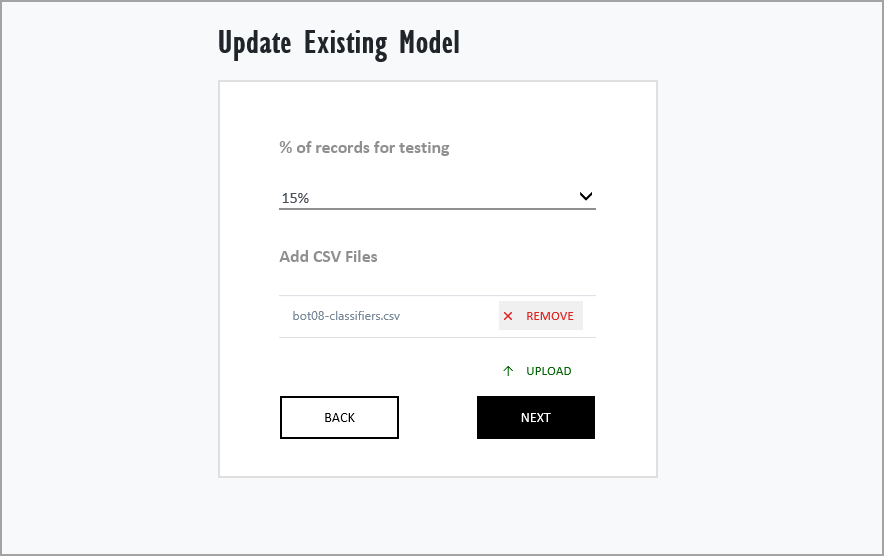
In the Update Existing Model window, select the desired percentage of intents that you want to test.
-
Click the Add CSV Files option, click the Upload button, navigate to the location of your CSV file on your local machine, and select it. Click the Next button once the CSV file has been uploaded.
-
In the Update Model Confirmation window, review the intents that you plan to test and make any changes if desired, then click the Next button to start testing your intents.
-
The green dots displayed light up as each stage in the test is completed.
-
Note that the testing process may take longer for larger CSV files containing more intents.
-
-
Once the test is completed, the intent engine report window opens, and you can review the test results. After reviewing the results, you can publish the new model version to production, making it active for the Virtual Assistant to use.
Publishing a Model Version to Production
Models must be published to production before they can be used by the Virtual Assistant. Note that only one model can be active in production at a time. Models are made active for use by the Virtual Assistant choosing the Publish New Model to Prod option.
To publish a new model version to production:
-
On the Classifiers page, click the Training
button. -
From the Select an Action field dropdown menu, select the Publish New Model to Prod option.
-
Select the desired model number from the Model Version dropdown menu.
-
Click the Next button. The selected model is published to production for use by the Virtual Assistant and marked as (Production) in the model version list.
Reverting a Model Version to Stage
A model version in staging represents the most recently created or updated version. Note that a model can be both in staging and production if you have published the most recently created or updated model version to production.
You can revert a model to stage by selecting the Revert Stage to Earlier Version option. This can be used to both move archived and production model versions to staging.
To revert an existing model to stage:
-
On the Classifiers page, click the Training
button. -
From the Select an Action field dropdown menu, select the Revert Stage to Earlier Version option.
-
Select the desired model number from the Model Version dropdown menu.
-
Click the Next button. The selected model is moved to staging and is be marked as (Staging) in the model version list.
Related Topics