Managing Scopes
A scope is a reusable definition of which articles a Knowledge Intelligence job analyzes. A scope selects articles by folder, by search criteria, or by a combination of both. You can reuse a saved scope across multiple jobs. A scope cannot exceed 2,500 articles.
Scopes List
The Scopes tab lists all scopes available in your department. The table includes the following columns:
-
Scope Name: The name assigned to the scope.
-
Description: An optional description of what the scope covers.
-
Language: The KB language of the articles in the scope.
-
Articles: The number of articles matched by the scope definition.
-
Type: How the scope selects articles: Folder-based, Search-based, or a combination of folders and search filters.
-
Used By: The number of jobs currently using the scope.
-
Created: The date the scope was created.
You can sort the list by Scope Name, Type, Used By, or Created.
Filtering Scopes
Use the following controls at the top of the list to find a scope:
-
Search: Find a scope by name.
-
Language: Show scopes for all languages or for one KB language.
-
Type: Show All, Folder-based, Search-based, or Folder-based with search filters scopes.
-
Used By: Show All scopes, scopes that are In use by at least one job, or scopes that are Not in use.
Scope Actions
Select the Options (...) menu on a scope to access the following actions:
-
Edit: Opens the Edit Scope dialog, where you can change the scope name, description, and article selection. Select Save Changes to save.
-
Duplicate: Create a copy of the scope.
-
Delete: Permanently remove the scope.
Creating a Scope
You can create a scope in either of the following ways:
-
On the Scopes tab, select + Create Scope, or select + (Create) > Scope.
-
While configuring a job, select + Create New Scope in the Select Scope dialog. Select Back to Saved Scopes to return to the list of saved scopes without creating a scope.
To create a scope:
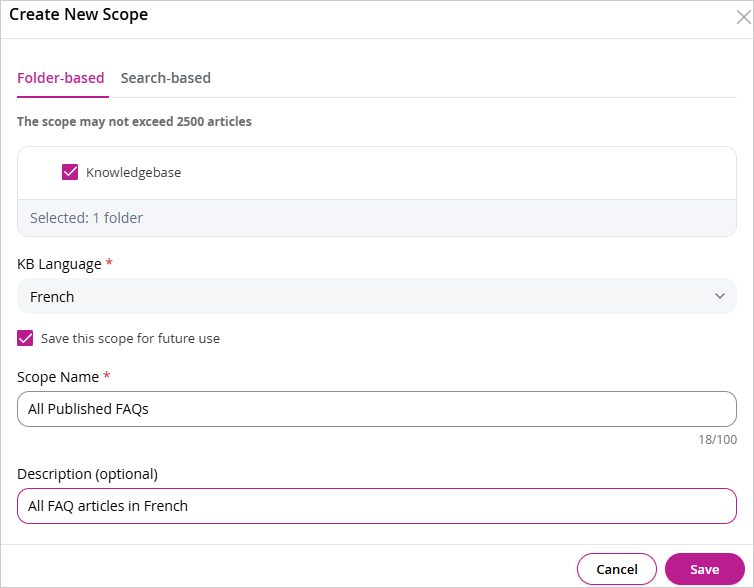
- Select Save this scope for future use if you want to reuse the scope in other jobs. This option appears when you create a scope from the job creation wizard.
- Enter a Scope Name (required, up to 100 characters).
- Select the KB Language in which the scope is created. The dropdown displays all KB primary languages configured for the partition.
- Optionally, enter a Description (up to 255 characters).
- Select one of the following tabs and define the articles to include:
- Folder-Based: See Folder-Based Scope.
- Search-Based: See Search-Based Scope.
- Folders + Search: See Folders and Search Scope.
- Select Save. If you are creating the scope from the job creation wizard, select Use Scope to save the scope and apply it to the job.
Folder-Based Scope
A folder-based scope includes all articles in the folders you select from your knowledge base hierarchy.
- Select the Folder-Based tab.
- Browse the folder tree and select the check box next to each folder you want to include. The number of subfolders or articles appears next to each folder, and the total number of selected folders appears below the tree.
- If you do not select any folders, the scope includes all folders.
Search-Based Scope
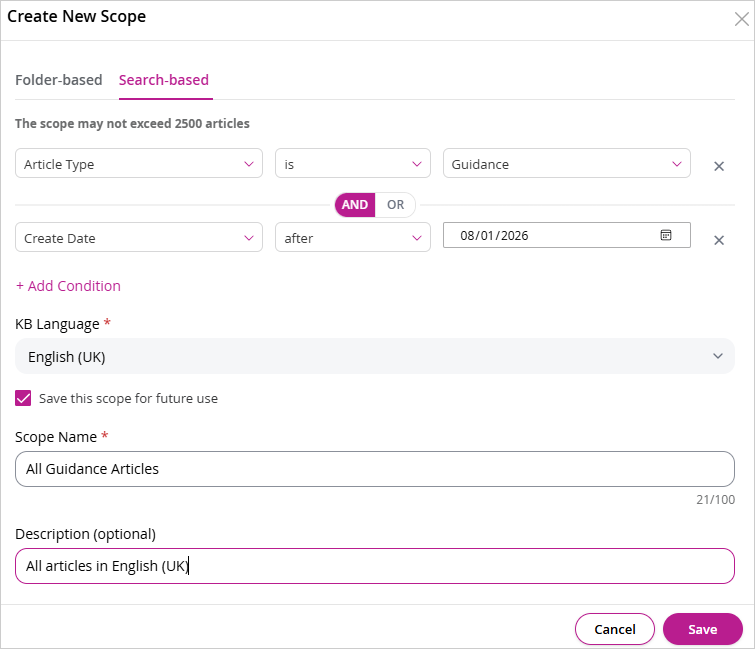
A search-based scope includes articles that match filter conditions you define.
- Select the Search-Based tab.
- Define one or more filter conditions under Search criteria. Each condition row consists of an attribute, an operator, and a value. Supported attributes include Article Type, Article Name, Article Content, Create Date, Last Modified Date, and Article ID.
- Select + Add Condition to add more rows.
- Select AND to require all conditions to be met, or OR to include articles that match any condition.
Folders and Search Scope
A folders and search scope combines a folder selection with search criteria.
- Select the Folders + Search tab.
- Under Folders, select the folders to include.
- Under Combine folders and criteria using, select how the folder selection and the criteria work together:
- Match both: Only articles that are in the selected folders and match the criteria.
- Match either: Everything in the selected folders, plus any article that matches the criteria.
- Define the search conditions. Select AND or OR to combine multiple conditions, and select + Add Condition to add more rows.
Related Topics