Testing Portals
When a portal is created, the Agent Portal URL and Customer Portal URL are automatically generated. These URLs can be copied and provided to agents and customers as access points for the portal. If you are using a custom template, you must manually edit the URL to update the location and name of the template.
To test a portal:
-
In the Navigation Menu, browse to Publishing > Portals.
-
On the Portals page, select the desired portal.
-
To test the agent portal, do the following:
-
On the General tab, in the URL- Agent Portal field, click the Open in New Tab
 button.
 -
Alternatively, from the General tab, in the URL - Agent Portal field, click the Add
 button. In the URL - Agent Portal window, click the Copy
  button. Open a web browser and paste the URL in the Address box and make any necessary changes to the template name, and press Enter.
 -
On the login page that opens in the new tab, provide the username and password of a user who has a license with Knowledge enabled (ChatPlus, EmailPlus, CalltrackPlus). If you want to test Guided help, make sure that the user has the eGain Knowledge+AI license as well.
-
-
To test the customer portal, do the following.
-
In the General tab, in the URL - Customer Portal field, click the Add
button. In the URL - Customer Portal window, click the Copy button. -
Open a web browser and paste the URL in the Address box, make any necessary changes to the template name, and press Enter.
-
If you have enabled authentication on the portal, you need to get a login name and password from your administrator, or sign-up to be able to access the customer portal.
-
Using Short Portal URLs
The portal URLs can be shortened in length to enhance its appearance and reduce the character count of the URL. Shortening the URL can make it easier for agents to remember and easier to share it with customers during an interaction. These URLs are generated by the system.
For each audience (Agents or Customers), you can also designate one short URL as the default. The default short URL is used as the fallback whenever a short URL is not explicitly specified for that audience, so it continues to work even if the underlying template is later renamed or removed. The Short URL Properties list identifies the current default for each audience with a Default indicator, and only one short URL can be the default per audience at a time.
To generate a short portal URL:
-
In the Navigation Menu, browse to Publishing > Portals.
-
On the Portals page, select the desired portal.
-
In the Edit Portal page, click the Manage Portals button.
-
From the Manage Portals menu, select Short URLs.
-
The Short URL Properties window appears, listing the existing short URLs along with their Audience, Language, Template Name, and Short URL Name. The short URL that is currently the default for an audience is marked with a Default indicator. The Short URL Properties window appears. Click the New
 button or you can also edit existing Short URL Properties by clicking the Edit
  button.
 -
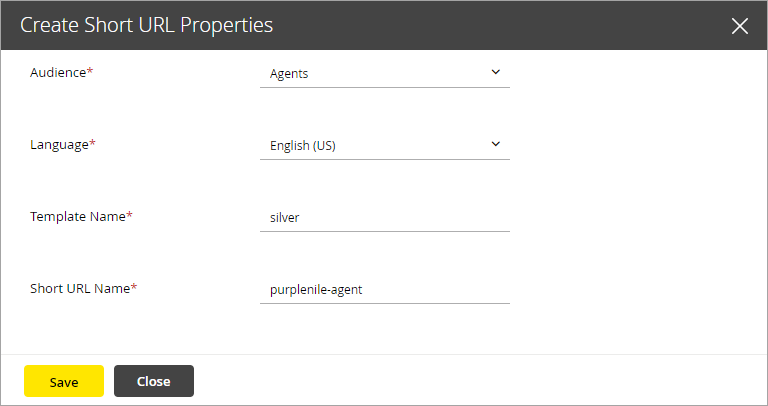
In the Create Short URL Properties window, provide the following parameters for the URL:
-
Audience: From the dropdown menu, select Agents or Customers.
-
Language: From the dropdown menu, select a language.
-
Select Theme: From the dropdown menu, select a theme for the portal. The following out-of-the-box options are available in the dropdown menu: iris, ombre, oasis, and aura. This list also displays the custom templates that you create using the theme builder.
-
Short URL Name: Enter an alphanumeric string unique to the system. For example, customer-us or agent-uk. This name is displayed in the URL.
If you use custom templates, configure the short URL for article subscription in the following format for agents and customers: subscribe-agent-Portal ID and subscribe-cust-Portal ID.
-
Select the Mark as default short URL for this audience check box if you want this short URL to be used as the fallback for the selected audience. Selecting this check box for a new default automatically clears it from the short URL that was previously the default for that audience, since only one short URL can be the default per audience at a time. If this short URL is already the default, the check box is selected and disabled, and a note explains that you must mark another short URL as the default for this audience first before you can change it.
For portals upgraded from an earlier release, the default short URL for each audience is automatically pre-populated based on the short URL that was previously active for that audience; you can change this default at any time by marking a different short URL as default.
-
-
Once the parameters have been entered, click the Save button to save and validate all configured URLs. You can create multiple URLs for a portal.
-
Navigate to the saved URL and click the View
 button.
 -
From the Short URL Properties window, click the Open in New Tab
button to access the portal. -
Click the Close button to close the window.
Deleting Short Portal URLs
To delete a short portal URL:
-
In the Navigation Menu, browse to Publishing > Portals.
-
On the Portals page, select the desired portal.
-
In the Edit Portal page, click the Manage Portals button.
-
From the Manage Portals menu, select Short URLs.
-
In the Short URL Properties window, navigate to the URL you want to delete and click the Delete
 button.
 -
A message appears asking to confirm the deletion. Click Yes to delete the Short URL.
Related Topics