Creating Process Workflows
Process Workflows are invoked by the AI Agent as tools or triggered by intent mapping. Use them to handle structured, multi-step processes mid-conversation — such as processing a refund, checking an order, or collecting specific information — before returning control to the AI Agent.
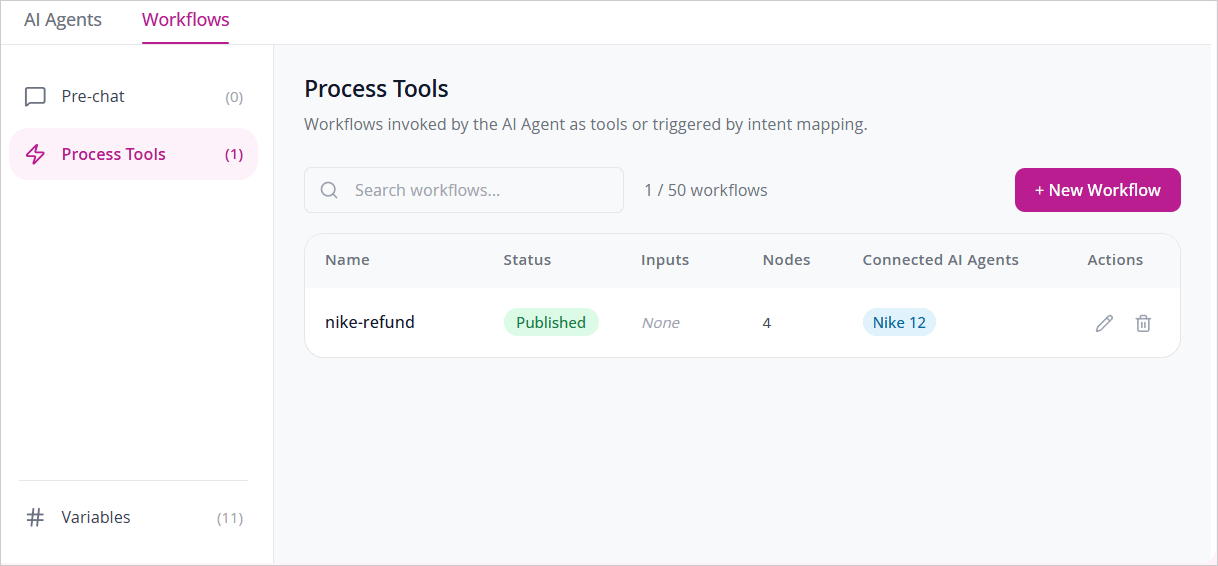
The Process Workflows page lists all Process Workflows in the current department. The page header shows the total number of workflows created out of the maximum allowed (for example, 1 / 50 workflows). Each workflow displays the following details:
-
Name: The name of the workflow.
-
Status: The current state of the workflow: Draft (not yet published), Published (active and available), or Published / Has Draft (a published version exists with unpublished changes pending).
-
Inputs: The input variables required to trigger the workflow when it is used as a tool by the AI Agent. This column will remain empty until the ability to configure Process Tool Workflows as action tools is available in a future release.
-
Nodes: The total number of nodes in the workflow.
-
Connected AI Agents: The AI Agents the workflow is currently assigned to. Displays None if the workflow has not been assigned.
-
Actions: Click the Edit
 icon to open the workflow in the builder, or the Delete
  icon to permanently delete the workflow.
To find a specific workflow, use the Search workflows field at the top of the list.
To create a Process Workflow:
- In Agentic Studio, go to Workflows and select Process.
- Click + New Workflow.
- Enter a name for the workflow.
- Drag blocks from the Block Picker onto the canvas and connect them to build the flow. The following blocks are available:
- Display: Statement
- Input: Question, Date, Time, Number, Email, Phone
- Logic: Condition, API, Jump, Wait, Set Variable, Query Filter
- Connector Actions: Chat Transfer, Send Email, Trigger Call
- Action: Send to AI Agent. Note that you cannot add a Send to AI Agent node after a Connector Actions node (Escalation), as Escalation ends that workflow path.
- Click each block on the canvas to open the Block Editor and configure its fields.
- To connect blocks, drag and drop from one output handle to the other of the block you wish to connect to. Hover over the path and click the delete icon to cancel the connection between two blocks.
- You can also configure nodes to handle error scenarios. For more information, see Handling Error Scenarios.
- Click Save Draft to save your progress, or click Publish to make the workflow active.
- Before publishing, the system runs a series of publish checks that verify the workflow name, node connections, required fields, and variable types. See Publishing a Workflow for the full list of checks.
- Once published, assign the workflow to an Intent under Test AI Agent section.
- After a workflow has been published more than once, you can review earlier published versions in read-only preview mode from the version selector next to Publish. See Viewing Workflow Versions.
Process Workflows require a connector to be configured at the tenant level before they will work. Please reach out to the eGain Support team to set up your connectors.