Managing Insights
An insight is a check that a Knowledge Insights job runs against articles. The Insights tab lists all insights available for Knowledge Intelligence jobs, including predefined insights provided by eGain and custom insights created in your partition. Predefined insights cannot be edited or deleted.
Insights List
Insights are grouped by category, such as Compliance, Consistency, Correctness, and Accessibility. Custom categories that you create also appear as groups. Each category has a table with the following columns:
-
Name: The insight name. Custom insights display a Custom tag.
-
Check Prompt: The prompt used to analyze articles for issues.
-
Fix Prompt: The prompt used to suggest a fix, if one is configured. A dash (-) means that the insight has no fix prompt.
-
Allow bulk fix: A toggle that controls whether the fix prompt can be applied to all findings at once. This toggle is available only for insights that have a fix prompt. For more information, see Allowing Bulk Fix.
-
Show on Dashboard: A toggle that controls whether findings for the insight appear on the Knowledge Intelligence Dashboard. When this toggle is off, findings appear only in job run reports.
-
An Options (...) menu with the following actions:
-
Open: View the insight details. You can edit custom insights.
-
Delete: Remove a custom insight. You cannot delete a system insight.
-
Insight Categories
-
Compliance: Checks related to regulatory obligations, legal language, and procedural requirements, such as Regulatory Compliance Check, Broken Links and Images, Metadata Issues, Localization Issues, and Undefined Acronyms.
-
Consistency: Checks for content style adherence and brand voice alignment, such as Content Style Issues.
-
Correctness: Checks for factual accuracy and content correctness, such as Outdated Content.
-
Accessibility: Checks for readability, sentence complexity, and skimmability.
Creating a Custom Insight
You can create your own insights using prompts from the Prompt Library. Prompts are created in the AI Console by the Prompt Manager and tagged for Knowledge Intelligence use as either a check prompt or a fix prompt.
To create a custom insight:
- On the Insights tab, select + Create Insight, or select + (Create) > Insight.
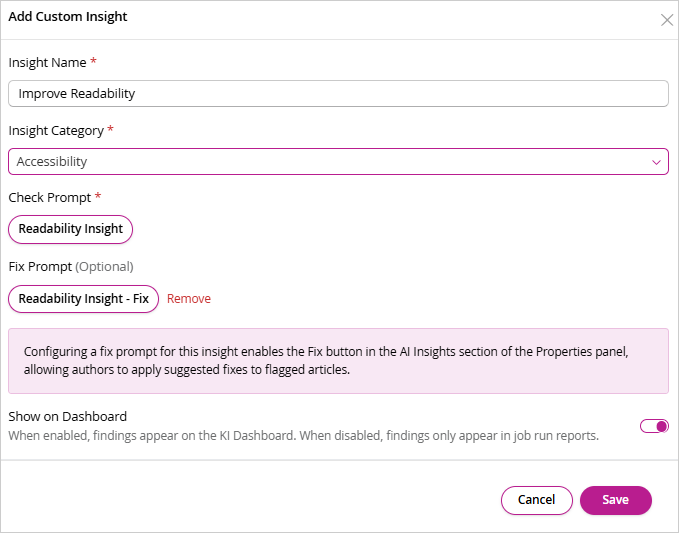
- In the Add Custom Insight dialog, complete the following fields:
- Insight Name (required): Enter a descriptive name for the insight.
- Insight Category (required): Select the category under which the insight appears.
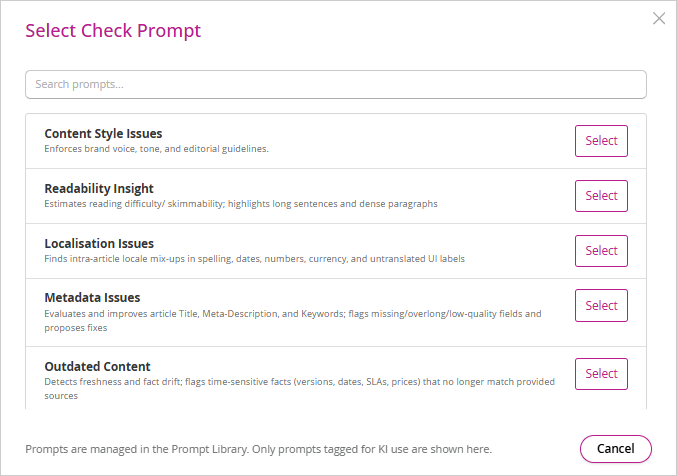
- Check Prompt (required): Select the prompt that analyzes articles for issues. Selecting this field opens the Select Check Prompt dialog, which lists all prompts in the Prompt Library that are tagged for Knowledge Intelligence use.
- Fix Prompt (optional): Select a prompt to generate fix suggestions. Configuring a fix prompt enables the Fix button in the AI Insights section of the article Properties panel, so that authors can apply suggested fixes to flagged articles. Select Remove to clear the fix prompt.
- Allow bulk fix for this insight: Turn on to let users apply the fix prompt to all findings at once, without individual review. Use with caution for insights that modify factual or regulated content. This option requires a fix prompt.
- Show on Dashboard: Turn on to display findings from this insight on the Knowledge Intelligence Dashboard. When this option is off, findings appear only in job run reports.
- Select Save. The insight is then available for selection when you configure Knowledge Insights jobs.
Allowing Bulk Fix
Bulk fix applies an insight's fix prompt to all of its findings at once, without review of each change. When bulk fix is allowed for an insight, the Fix All Issues button is available on that insight's findings list on the Dashboard.
To allow bulk fix for an insight:
- On the Insights tab, locate the insight. The insight must have a fix prompt.
- Turn on the Allow bulk fix toggle.
- In the confirmation dialog, review the fix prompt that will be applied, and then select Allow bulk fix. Select Cancel to leave bulk fix turned off.
Use bulk fix with caution for insights that change facts or regulated text, because changes are applied without individual review.
Related Topics