Reviewing Canonical Questions
Overview
After a Knowledge Orchestration job completes, the results surface as canonical questions — the normalized, best-phrasing representation of clustered customer questions. Reviewing these questions is the primary workflow for knowledge managers and authors to understand demand, assess answer coverage, and take action on gaps.
Two summary metrics on the dashboard provide an at-a-glance view of job scale:
-
Questions — The total number of canonical questions produced after clustering. Each question represents a unique intent derived from one or more utterances.
-
Utterances — The total number of raw or near-raw user expressions extracted from transcripts or search logs before clustering. A high utterance-to-question ratio indicates significant variation in how users express the same intent.
Together, these metrics convey how much source material was processed, how much question demand was discovered, and how densely questions are distributed across intents.
Select View all in the Questions panel on the dashboard to open the full question management view.
Question Views
The question list can be displayed in three layouts, selectable from the upper right of the page:
-
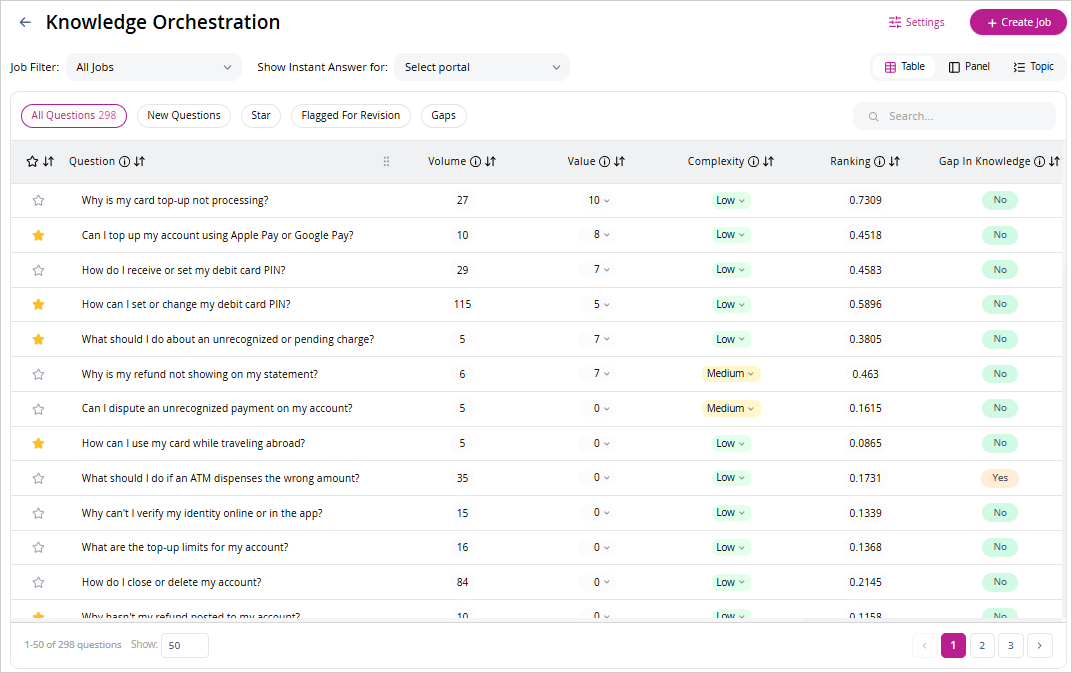
Table — Displays all questions in a sortable grid with columns for Volume, Value, Complexity, Ranking, Gap in Knowledge, and channel counts (Call, Chat, Email). Best for scanning and sorting across large question sets.
-
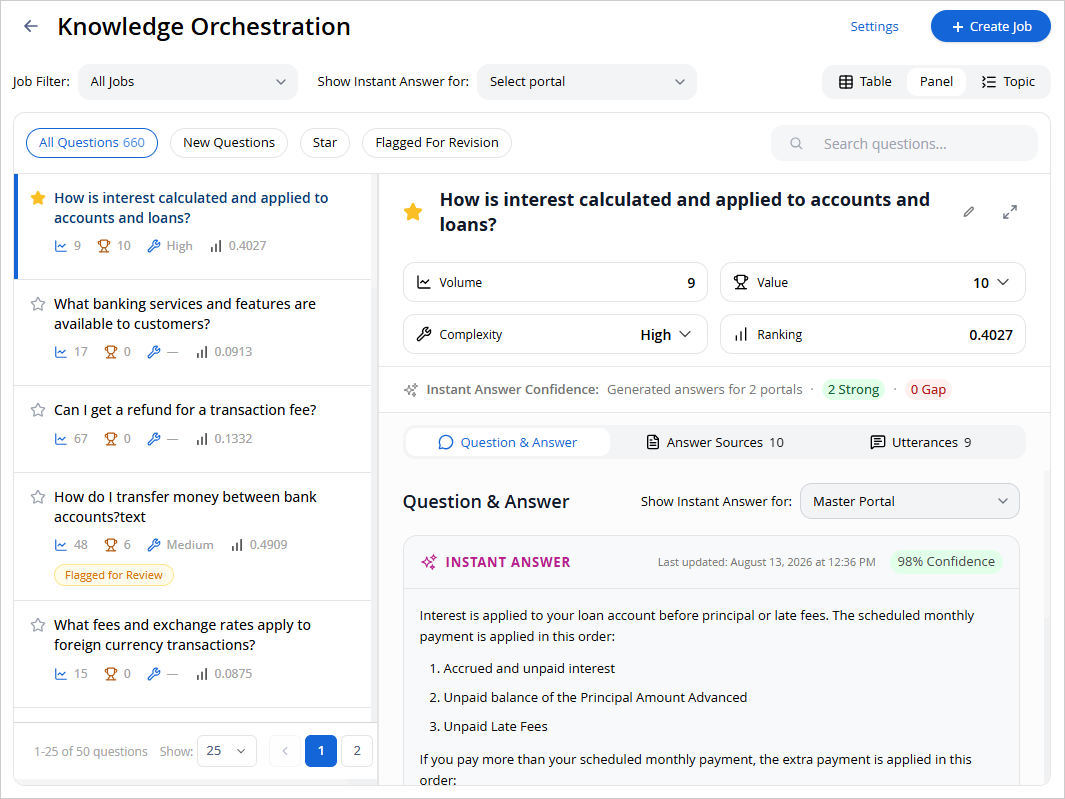
Panel — Displays questions as summary cards showing key metrics inline. The Question Details pane opens alongside the list when a question is selected. Best for reviewing questions and their answers side by side.
-
Topic — Displays questions organized under their auto-generated topic hierarchy. Each topic row shows the number of subtopics, questions, volume, and value. Select a topic to expand its subtopics and questions. Best for understanding thematic coverage. For more information, see Knowledge Orchestration Dashboard.
Filtering Questions
Use the Job Filter dropdown to scope the question list to a specific job, or keep it set to All Jobs to view the full question set across all runs.
The filter tabs below the toolbar allow you to narrow the question list by status. Filters can be combined — multiple active selections use AND logic.
|
Filter |
What it Shows |
|---|---|
|
All Questions |
Every canonical question in the current scope, with the total count shown in the badge. |
|
New Questions |
Questions observed for the first time in the current job run, with no prior history in the workspace. Triage these to determine whether they require immediate attention. |
|
Star |
Questions that have been marked as priorities by the team. Starred questions also appear in the Star Questions panel on the dashboard. |
|
Flagged for Revision |
Questions where the instant answer has been flagged as incorrect or inaccurate. A question moves to this filter when Flag for Review is selected in the Question Details pane. |
|
Gaps |
Questions where no instant answer is available or the answer confidence score falls below the configured threshold. These are the primary candidates for article generation. |
Reviewing Question Details
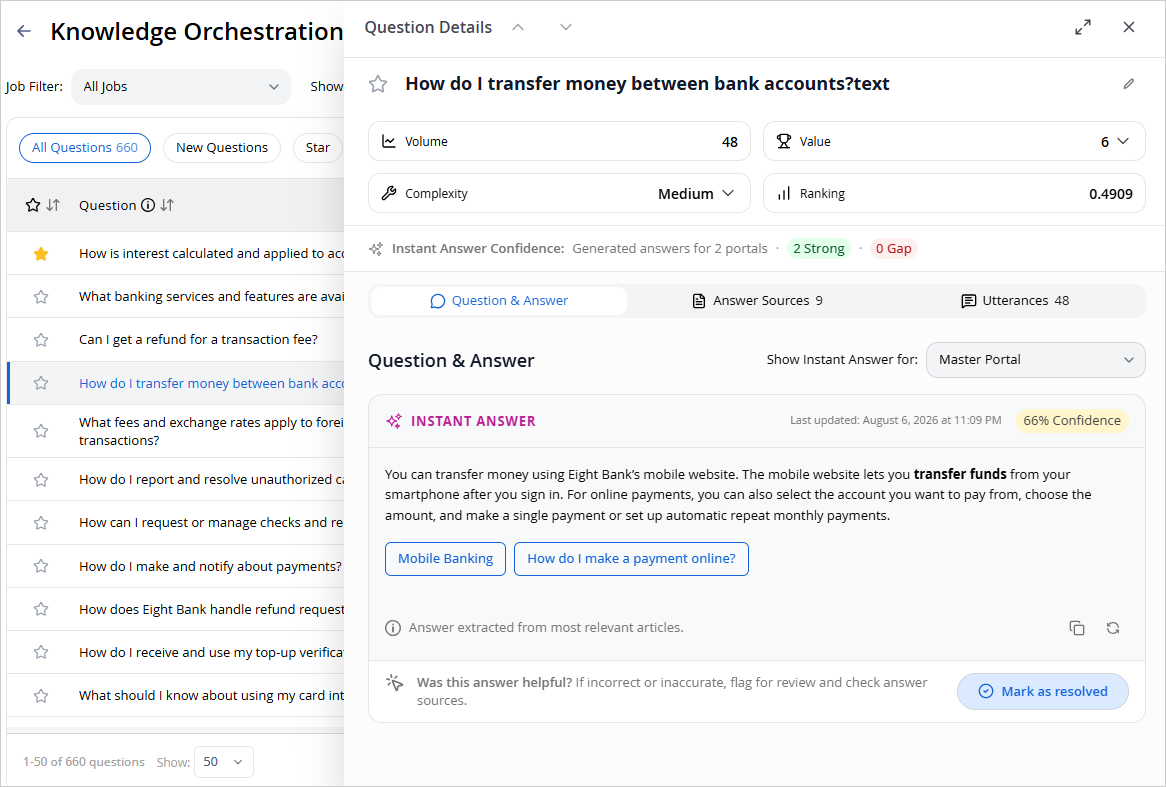
Select any question in the list to open the Question Details pane. The pane displays the canonical question at the top, along with four metrics:
-
Volume — How often this question cluster appeared across source data.
-
Value — Business importance on a scale of 1–10, editable inline.
-
Complexity — Effort to document or automate an answer, shown as Low, Medium, or High, editable inline.
-
Ranking — The computed priority score based on the current ranking weights configured in Settings.
The pane has the following tabs:
Question & Answer
Displays the instant answer returned by the selected portal for this canonical question. Where a strong answer exists, the response is shown with its confidence score, contributing article references, and source snippets. Use the Show Instant Answer for dropdown to switch the view between available portals or generate Instant answers for a portal.
If no answer is available or the confidence score falls below the threshold, a Knowledge Gap Detected message is shown with a Generate Article option. If an answer is returned but appears incorrect or incomplete, select Flag for Review to move the question to the Flagged for Revision queue.
If a generated Instant Answer's confidence score falls 30 percentage points or more below the configured Answer Confidence Score for the selected portal, Knowledge Orchestration suppresses the answer by default. A low score like this typically indicates the answer does not match the underlying content and is likely a hallucination, so it is hidden rather than surfaced as a reliable result. The question is instead flagged as a gap, and the Question & Answer tab in Question Details shows an Instant Answer hidden message stating that the answer scored far below the confidence threshold. Select Show answer to reveal the suppressed answer on demand; select Hide answer to hide it again. Answers that fall within 30 percentage points of the threshold continue to display as they do today.
Answer Sources
Displays the knowledge articles that were retrieved and used to generate the instant answer for this question, ranked in the order they contributed to the answer. The tab header shows the total number of source articles found.
Each source entry shows:
-
The retrieved article's title and an Article ID badge. Select the Article ID to open that article in a new tab.
-
The excerpt of the article content that was used to generate the answer, along with a Relevancy percentage indicating how closely that excerpt matched the question.
Select an excerpt to expand it and view the full answer text drawn from that source.
Utterances
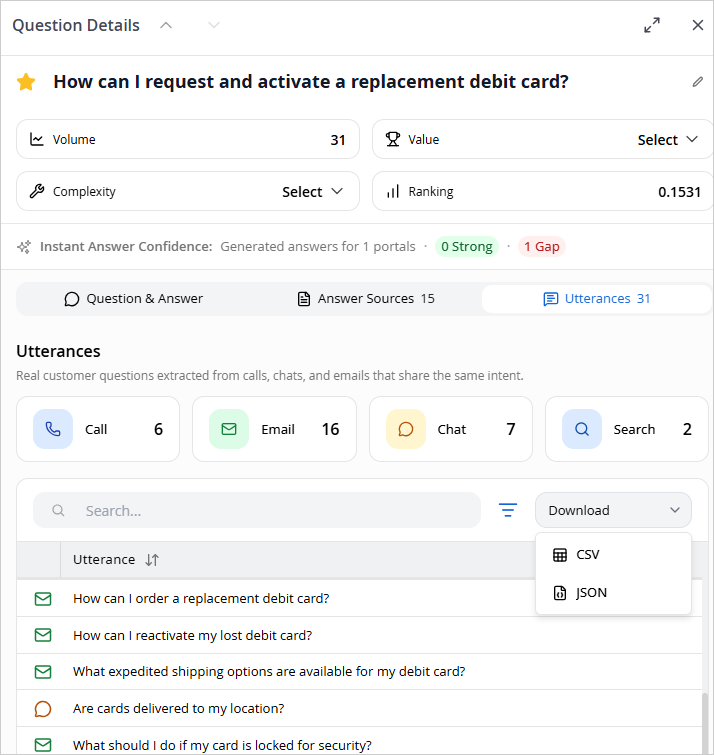
Displays the raw customer expressions that were clustered to form this canonical question. The channel tiles show the utterance count broken down by source: Call, Email, Chat, and Search. Select a tile to filter the list to that channel.
Use the Search field to find a specific utterance, and select the Utterance column header to sort the list. Each row shows a channel icon alongside the utterance text.
Select Download to export the utterance list as a CSV or JSON file.
Viewing Utterance Details
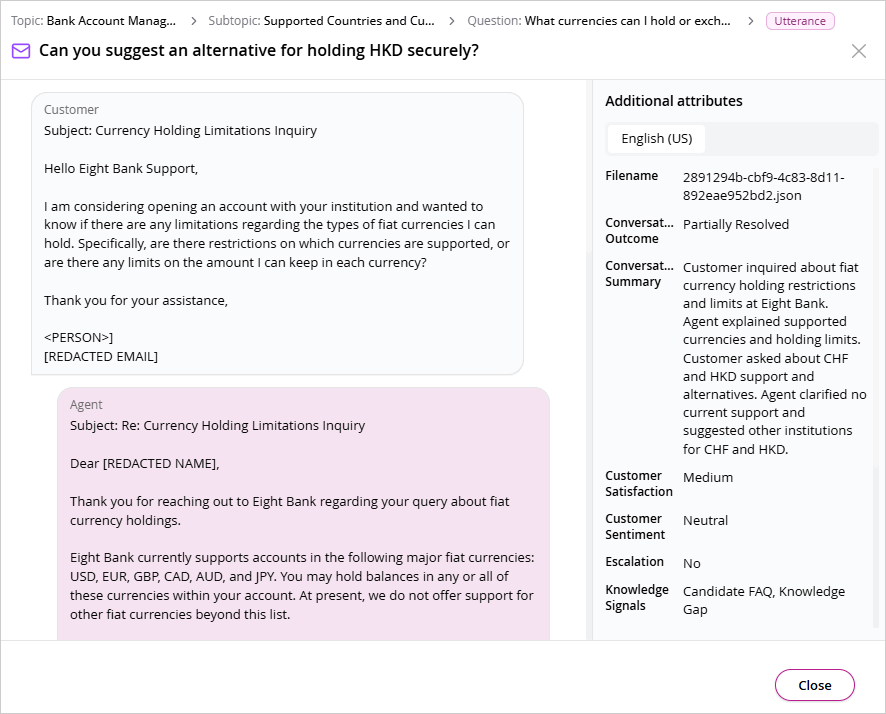
Select an individual utterance in the list to open its source detail dialog. The dialog shows where the utterance came from and where it sits in the analysis:
-
Breadcrumb: At the top of the dialog, a breadcrumb traces the utterance back to its root: the Topic, the Subtopic, and the canonical Question the utterance belongs to, followed by an Utterance label.
-
Utterance: Below the breadcrumb, the utterance text is displayed with an icon that indicates the channel, such as email, chat, or call.
-
Conversation: The left panel shows the originating conversation. Each message is labeled Customer or Agent, and agent replies are highlighted. Scroll to read the full conversation.
-
Additional attributes: The right panel shows the details for the conversation, including the original transcript file name and the AI-generated attributes described in the following table. If the transcript is available in more than one language, each language is shown as a tab at the top of the panel (for example, English (US)). Select a tab to view the conversation and attributes in that language.
Select X to close the dialog.
To trace in the other direction, from a topic down to its utterances, expand the topic and subtopic in the Topic view, open a canonical question, and then select the Utterances tab to see the utterances and source conversations behind it.
The Additional attributes panel shows the following attributes:
|
Attribute |
Description |
Example |
|---|---|---|
|
Filename |
The name of the original transcript file, as it was uploaded or ingested. |
2891294b-cbf9-4c83-8d11-892eae952bd2.json |
|
Conversation Summary |
AI-generated summary of the interaction. |
Customer contacted support to reset their password and regain account access. |
|
Primary Intent |
The customer's primary reason for contacting support. |
Password Reset |
|
Secondary Intent (Optional) |
Additional customer intent, if applicable. |
Account Verification |
|
Customer Sentiment |
Overall sentiment expressed during the interaction. |
Positive, Neutral, Negative |
|
Conversation Outcome |
Final outcome of the interaction. |
Resolved, Partially Resolved, Unresolved |
|
Customer Satisfaction |
Predicted customer satisfaction based on the conversation. |
High, Medium, Low |
|
Sales Opportunity |
Potential commercial opportunity identified during the interaction. |
None, Upsell, Cross-sell, Purchase Intent, Retention Risk |
|
Products & Services |
Products or services discussed during the interaction. |
Mobile App, Premium Account |
|
Escalation |
Indicates whether the conversation required escalation or transfer. |
Yes / No |
|
Knowledge Signals |
AI-generated knowledge observations. |
Knowledge Gap, Candidate FAQ, Existing Knowledge Referenced |
If an attribute could not be determined for a given conversation, its value appears as blank rather than causing the conversation to be excluded from results.
Generating Articles to Close Gaps
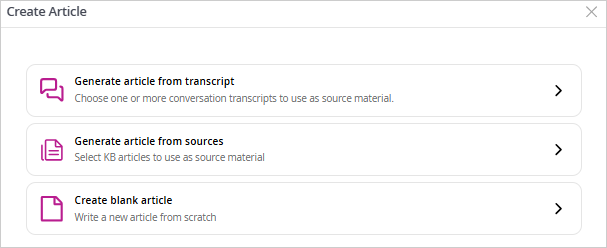
For questions where a gap is detected, Knowledge Orchestration provides three paths to generate or create content directly from the question context.
1. Generate article from transcripts
- In the Question & Answer tab, select Generate Article on the gap card.
- From the Create Article modal, select Generate article from transcript.
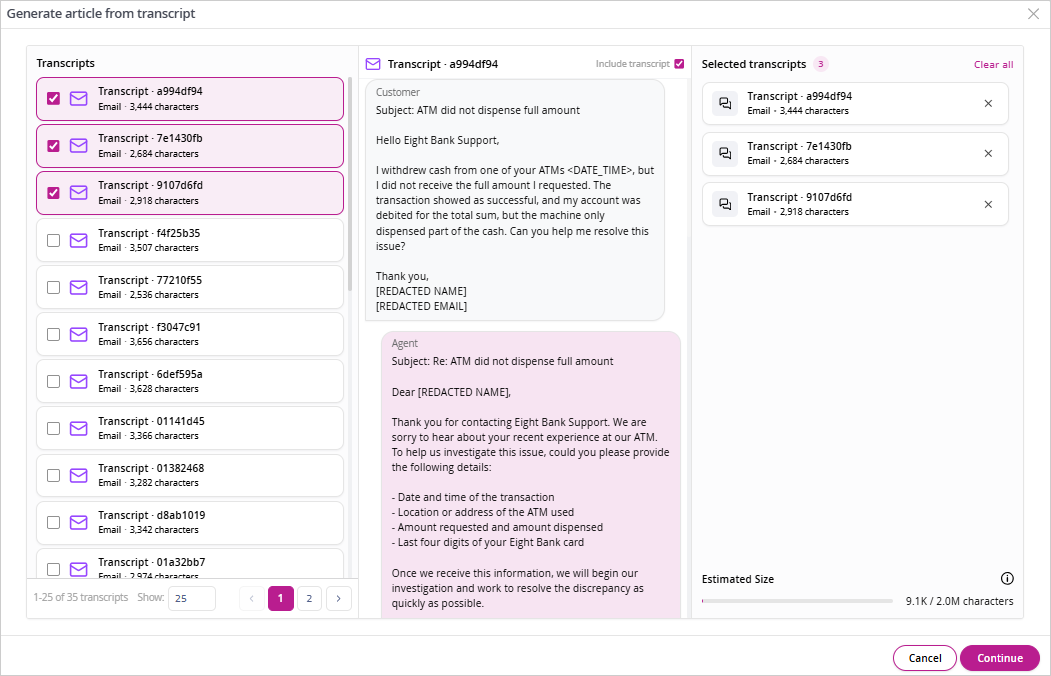
- In the Generate article from transcript dialog, select the transcripts to use:
- The Transcripts panel on the left lists the available transcripts. Each transcript shows its ID, an icon and label for the channel (Email, Chat, or Call), and its size in characters. Select Filter to narrow the list, and use Show and the page numbers to move through it.
- Select a transcript to preview it in the center panel. The conversation is shown with each message labeled Customer or Agent.
- To use a transcript, select the check box next to it in the list, or select Include transcript at the top of the preview. Selected transcripts are highlighted in the list. You can select multiple transcripts.
- The Additional attributes panel on the right shows the details of the previewed transcript, such as the file name, conversation outcome, summary, sentiment, and intents. If the transcript is available in more than one language, each language is shown as a tab at the top of the panel. For more information about these attributes, see Utterances.
- The Estimated Size bar at the bottom of the panel shows the combined size of all selected transcripts against the 2.0M character limit. The bar fills as you add transcripts. You cannot exceed 2.0M characters in total; to add another transcript after reaching the limit, clear the check box for a selected transcript to free space.
The Continue button is available after you select at least one transcript.
- Select Continue.
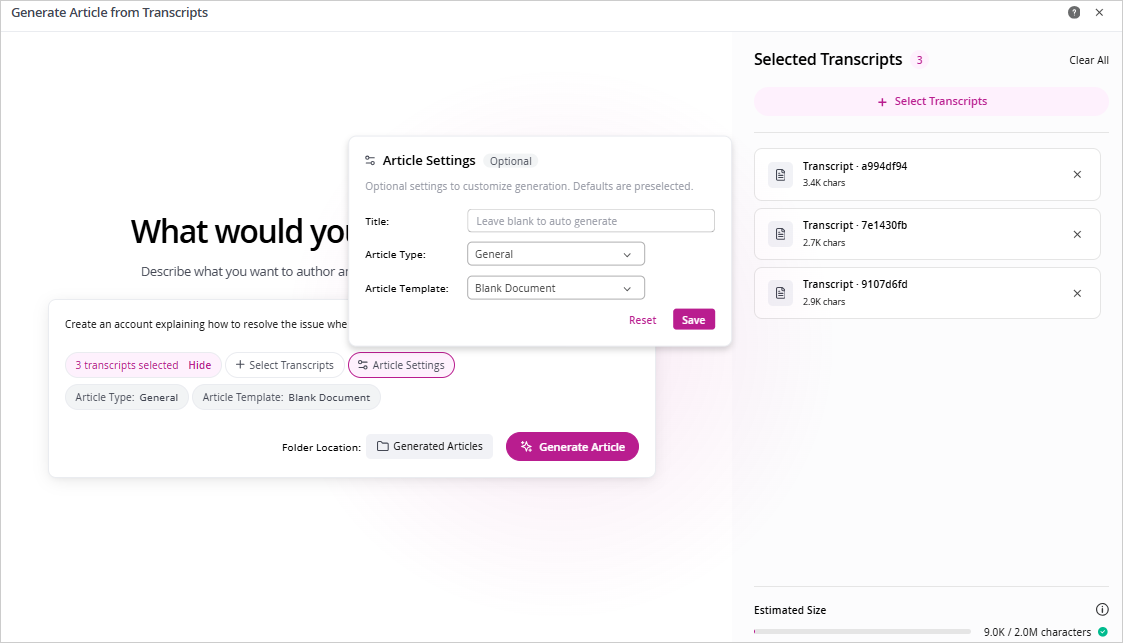
- On the authoring screen, enter a prompt in the text field describing how the article should be drafted.
- Optionally, select Article Settings to configure the following:
- Title: Leave blank to auto-generate, or enter a specific title.
- Article Type: Select the article type that applies. Defaults to General.
- Article Template: Select the template to apply. Defaults to Blank Document.
- Select Generate Article. The generated draft appears on the right. Please note that the 'Generate article from transcript' prompt is used to generate the article. This is an OOTB prompt available in the Prompts (AI Console) Console.
- Review the draft. If the result is unsatisfactory, select Retry to regenerate. Select Discard to abandon the draft.
- To save the article, select Save:
- Save and Open in Editor — Saves the draft and opens it in the article editor for further refinement and publishing.
- Save and Close — Saves the draft to the Generated Articles folder without opening the editor.
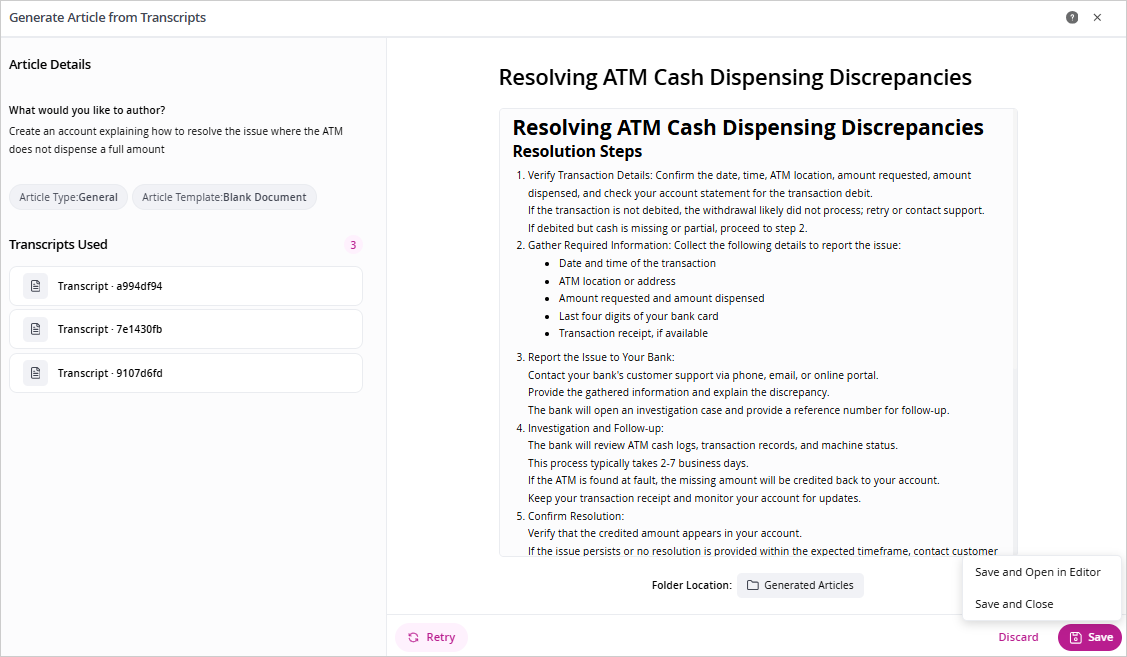
All articles generated through Knowledge Orchestration are saved to the Generated Articles folder under the Shared folder by default. To save it to a different folder, select the folder name and then select another folder.
2. Generate article from sources
- In the Question & Answer tab, select Generate Article, then choose the Generate from sources option.
- On the authoring screen, enter a prompt describing the article to be authored.
- Select + Add Sources. In the source selection panel, use Browse Topics to navigate the topic and article hierarchy, or use Search Knowledge Base to find articles by keyword.
- Select the checkbox next to each article to add it. Selected articles appear in the Selected Sources panel on the right.
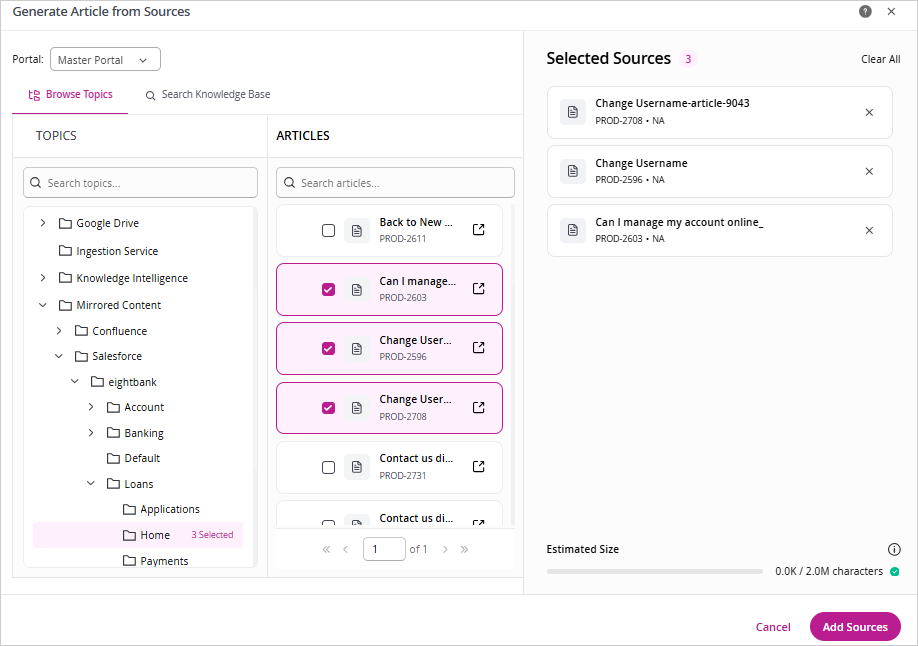
- Select Add Sources to confirm the selection.
- Optionally, configure Article Settings as described above.
- Select Generate Article, then save or discard the draft as described above.
3. Create a blank article
- In the Question & Answer tab, select Generate Article, then choose the Create blank article option.
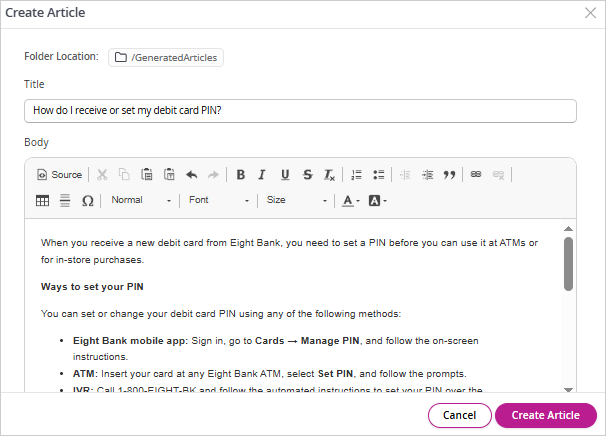
- In the Create Article dialog, the Folder Location defaults to /GeneratedArticles. To change it, select the folder name. In the Select Folder dialog, select the folder you want to save the article to, then select Done.
- Enter an article title in the Title field.
- Author the article content in the Body field. Use the formatting toolbar to apply headings, lists, links, and other formatting as needed.
- Select Create Article. The article opens in the article editor where you can review, refine, and publish it.
Generating Instant Answers for a Portal
If instant answer data is missing or outdated for a portal, you can trigger generation directly from the question list. Select the Show Instant Answer for dropdown and choose Generate Instant Answer for portal. In the confirmation modal, select the target portal from the dropdown and select Generate. A job is created and instant answers are generated for all questions against that portal.
Related Topics